
GoChat now allows its users to initiate and utilize the WhatsApp calling feature which was recently introduced by Meta.
Users will now be able to call contacts from inside the Live Chat interface, as well as use existing AI Agents to answer calls on their behalf.
Enabling Calling Feature (Embedded Sign Up)
If your workspace is on the embedded signup, first connect your WhatsApp with GoChat by following the setup guides (Set up a new phone from zero or Set up if you want to migrate from another platform).
Once your WhatsApp is successfully integrated (or was previously already connected) you will now be able to see the calling icon against your number.

Click on the call icon to enable permissions:
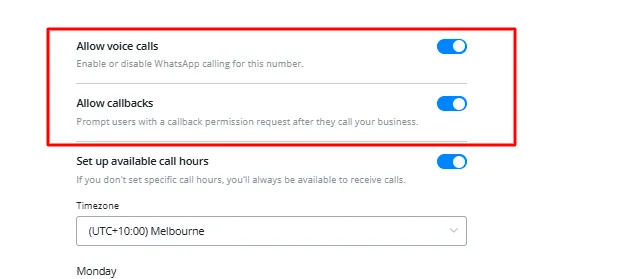
You can also set up business hours:
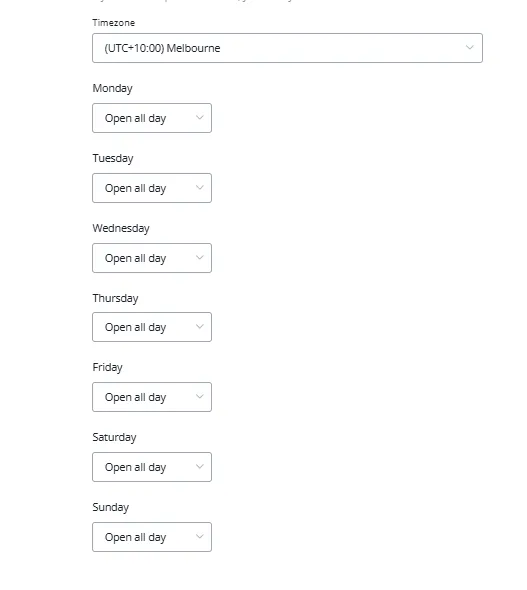
Once done, click Save. Your integration is complete.
Whatsapp Calling Triggers
Go to Automations → Triggers → Create New Triggers → WhatsApp Call Permission Update.
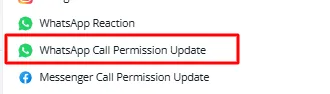
This will trigger whenever someone updates their calling permissions after you have sent them the call permissions message.
Calling AI Agent
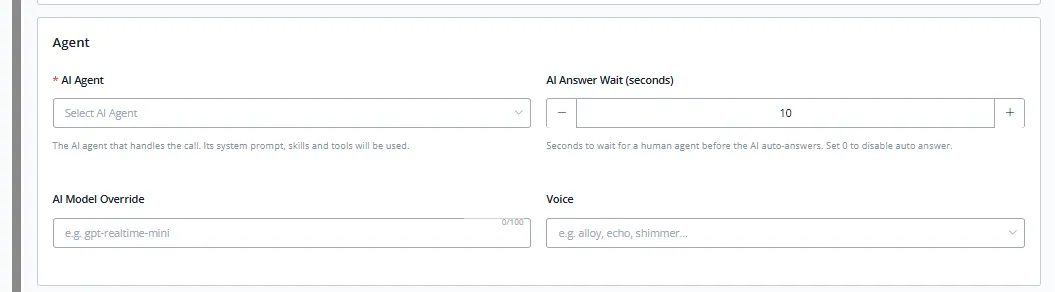
You can also configure an AI agent to handle the calls for you. Go to AI Hub and select “AI Call Settings”.
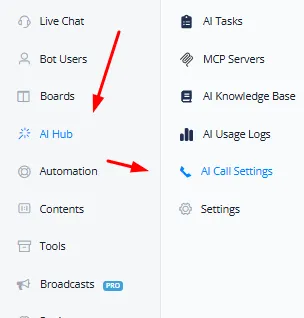
In this section you can enable/disable the calling agent.

You can select the AI Agent, the waiting time and the model, and a voice you want to use.
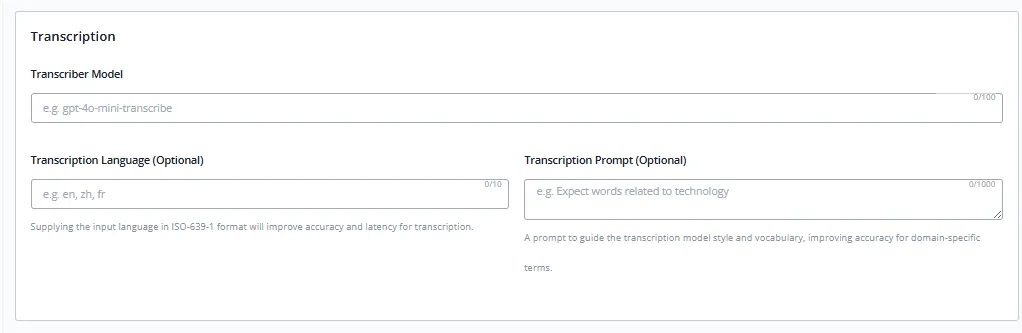
You can select the transcribing model, the language, as well as any special instructions.
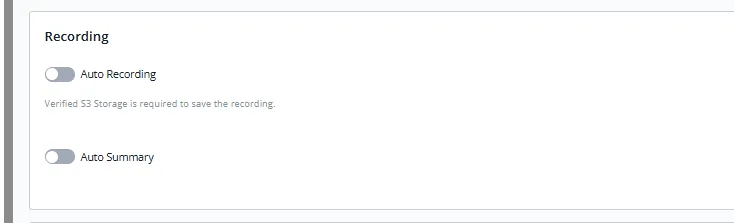
You can also enable or disable the call recordings and summaries.
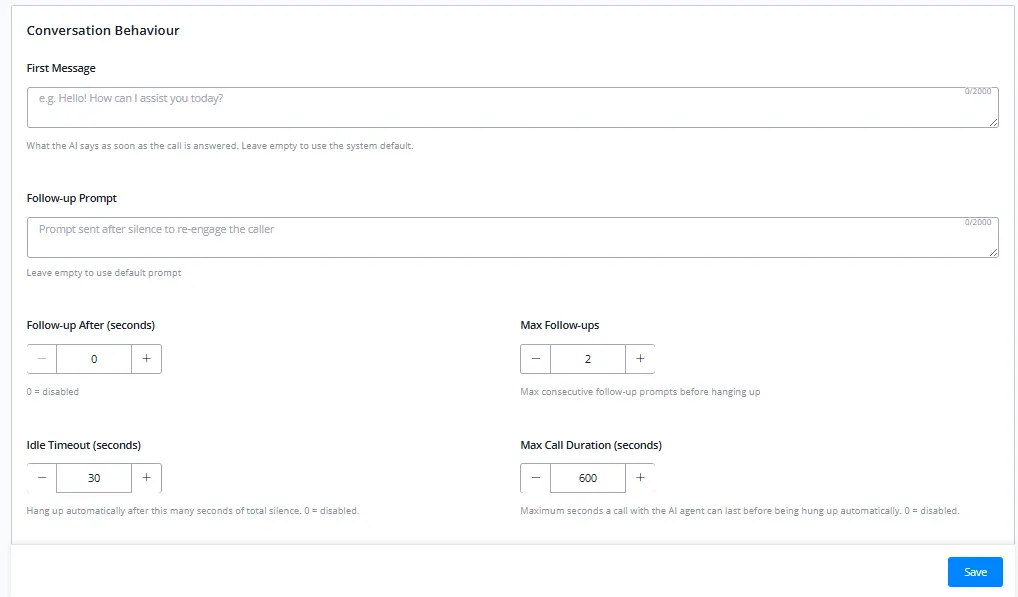
You can also further configure the conversation behavior by modifying the first message as well as the follow-up behavior.
Lastly, you can enable/disable the human agent takeover if needed.

Calling Analytics
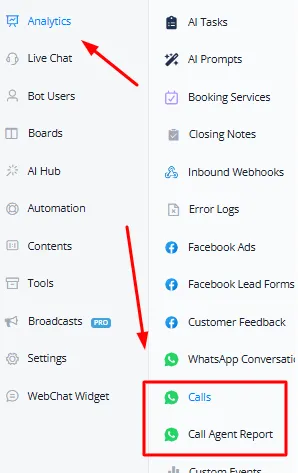
Click on the analytics tab and you should be able to view calling analytics for your calling agent as well as the calls.
Limitations
There are a few limitations by platform, which are as follows:

WhatsApp / Messenger call usage (last 30 days)
41 / 50 calls in the last 30 days
- When business-initiated calls go unanswered or are rejected:
- 5 consecutive unanswered calls result in a system message to reconsider an approved permission (compared to 2 consecutive unanswered calls for production accounts).
- 10 consecutive unanswered calls result in an approved permission being automatically revoked (compared to 4 consecutive unanswered calls for production accounts).
You obtain a public test number after completing the Get Started flow.
Your business is not required to have a daily messaging limit of 2,000 unique recipients to test Calling API features when using public test numbers and Sandbox accounts.
Calling is disabled by default on test numbers. You must configure calling features in phone number call settings before using the Calling API on a test number.