
A broadcast sends a sub-flow to a group of users at once: a promotion, a reminder or a news update. You pick the sub-flow, who receives it and when it goes out.
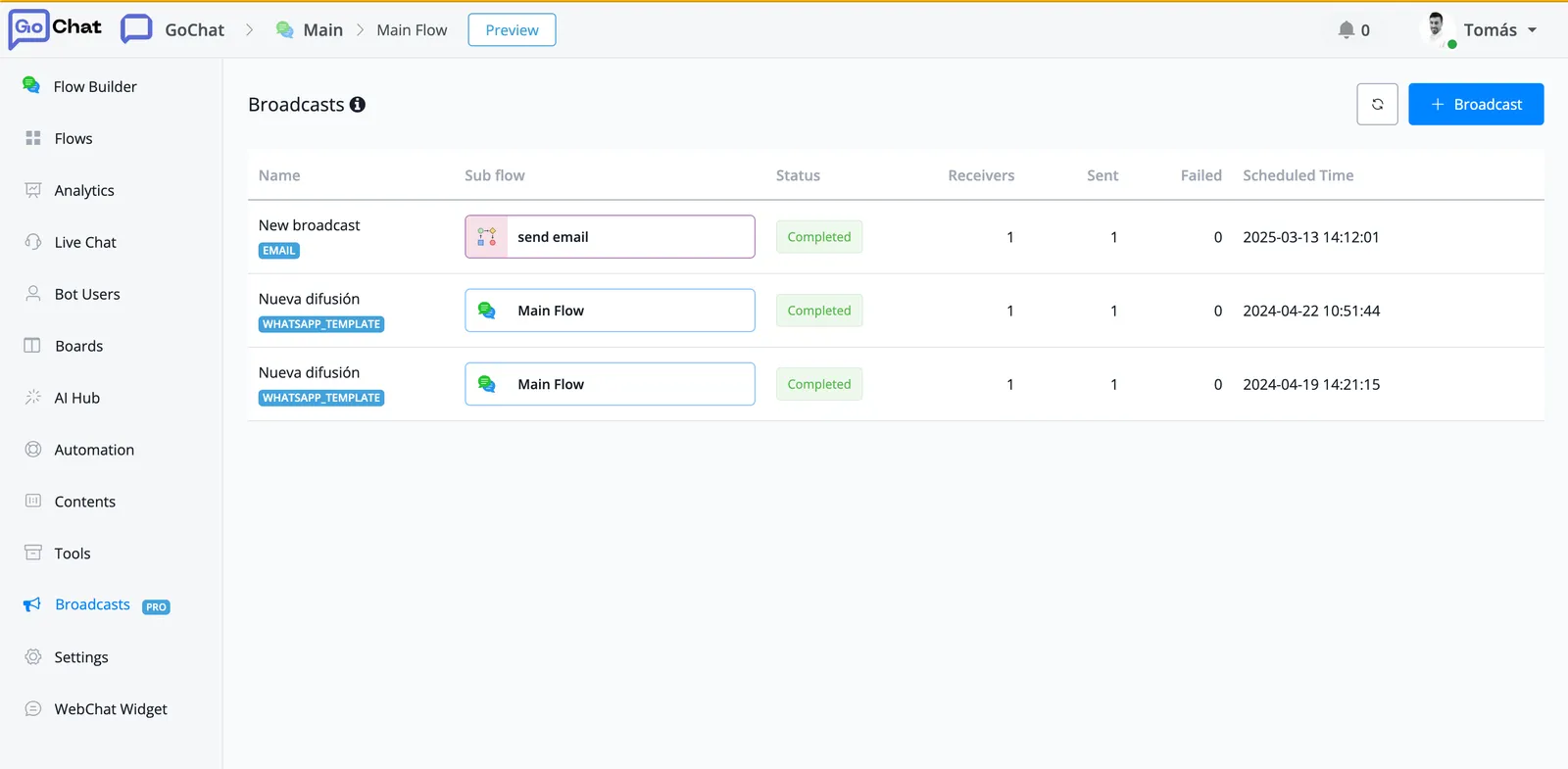
Create a broadcast
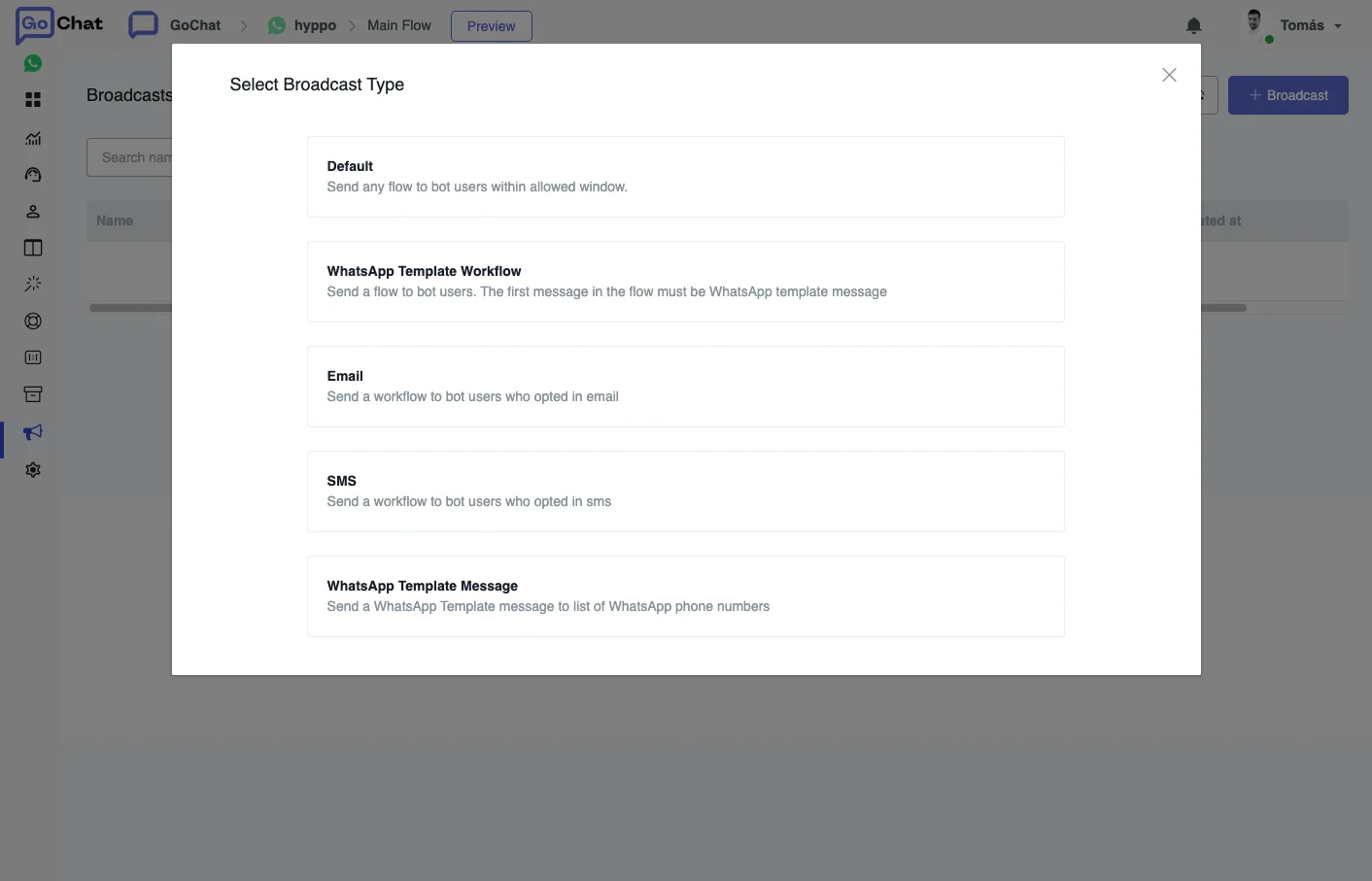
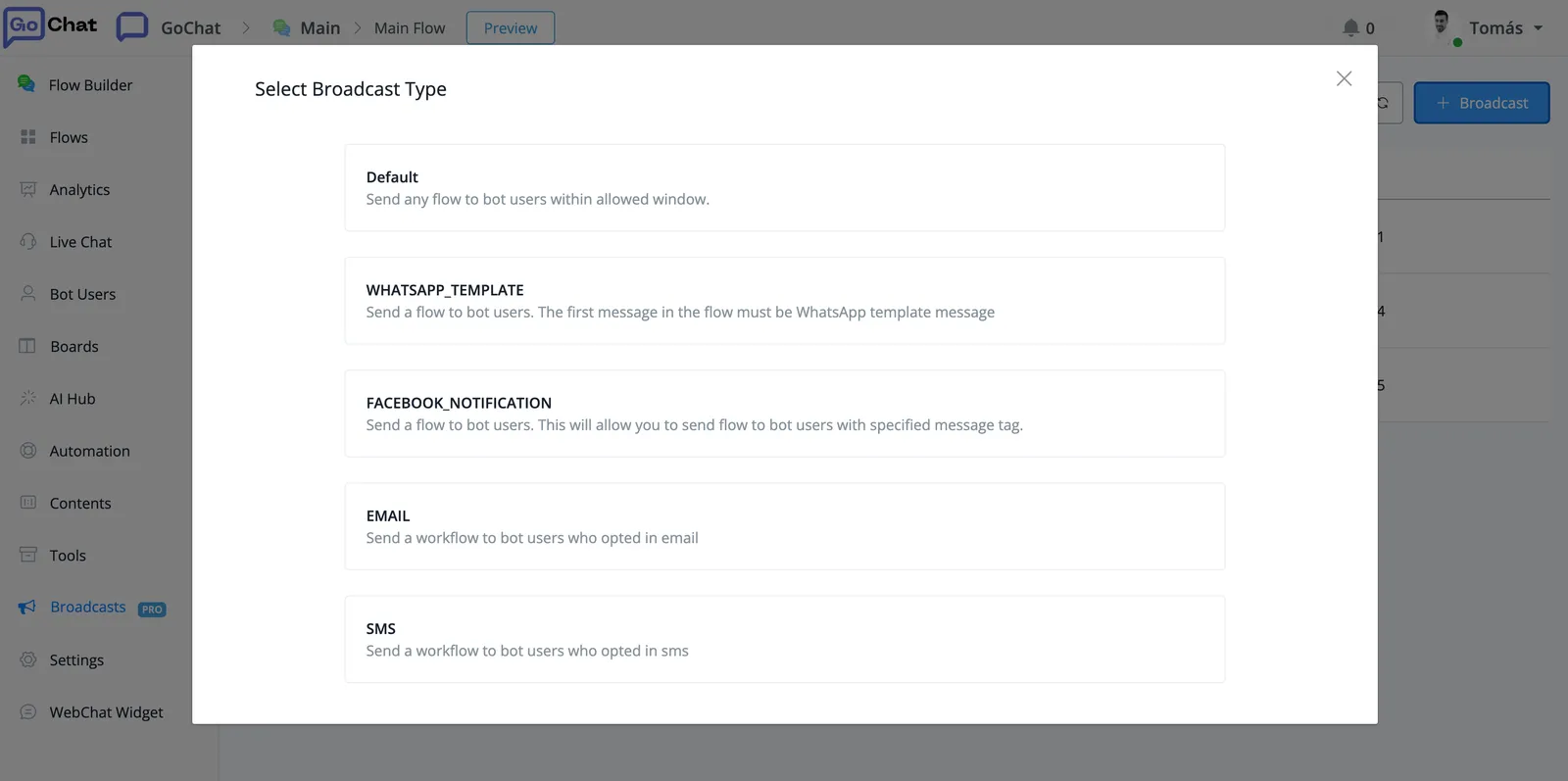
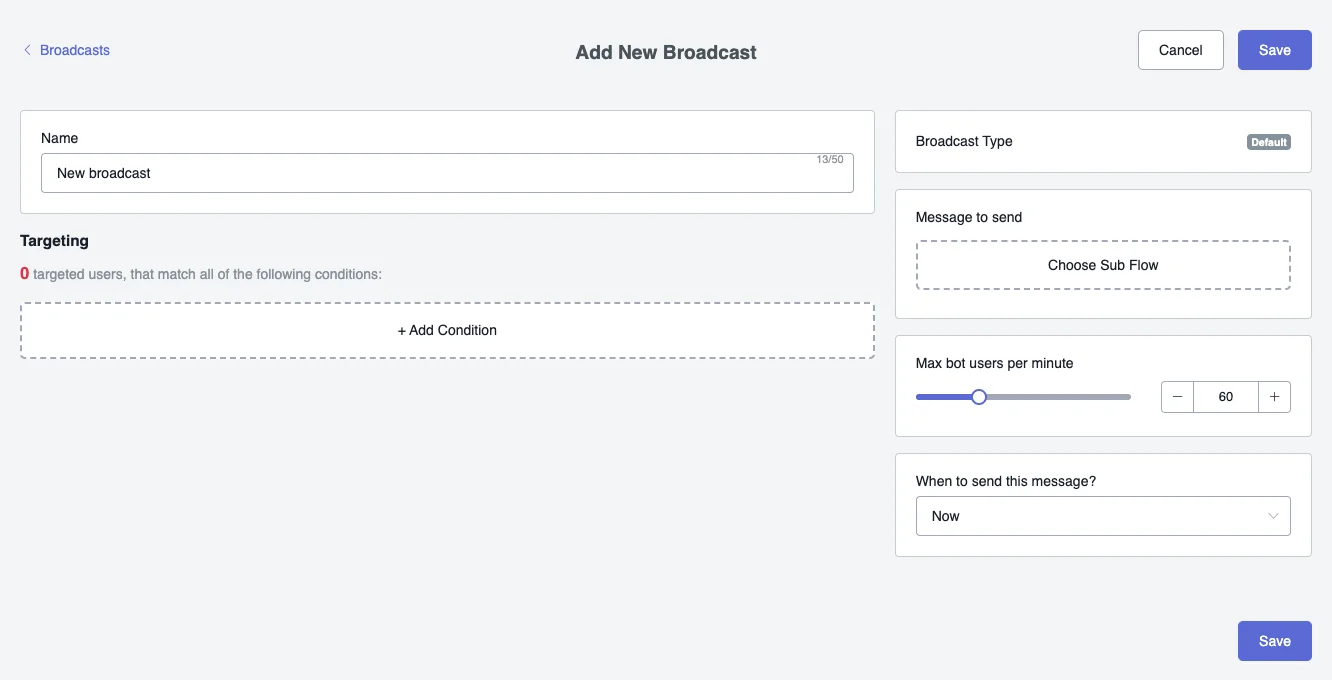
Go to Broadcasts in the left sidebar of your bot and click + Broadcast. First choose the broadcast type:
- Default: sends any flow to bot users within the allowed window.
- WhatsApp Template Workflow: sends a flow whose first message must be a WhatsApp template message.
- Email: sends a workflow to bot users who opted in to email.
- SMS: sends a workflow to bot users who opted in to SMS.
- WhatsApp Template Message: sends a WhatsApp template message to a list of phone numbers.
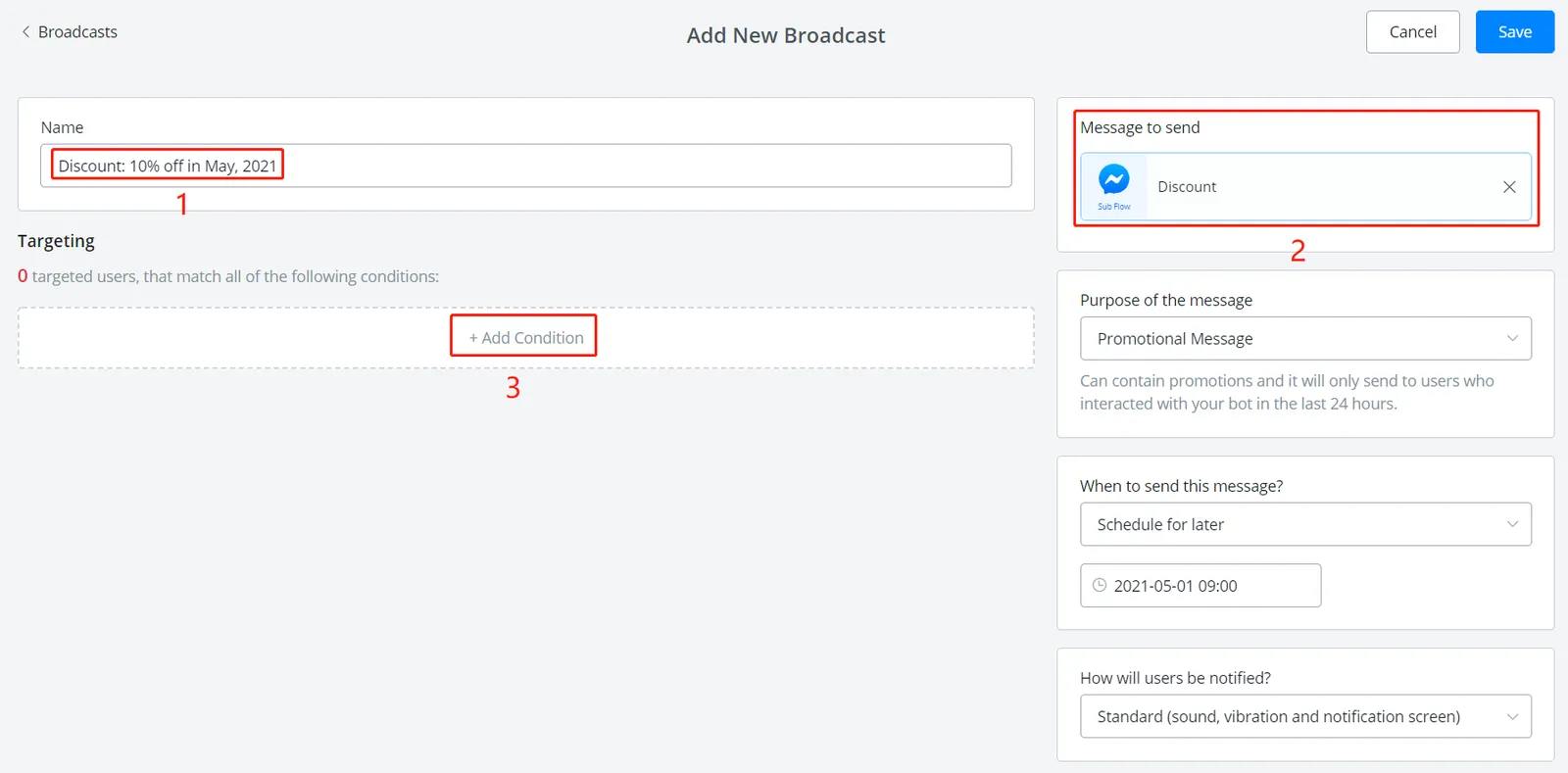
To set it up:
- Give the broadcast a title. It is for you, users don’t see it.
- Select the sub-flow to send. Build it first in the Flow Builder: the broadcast sends whatever that sub-flow does.
- Add conditions to filter who receives it.
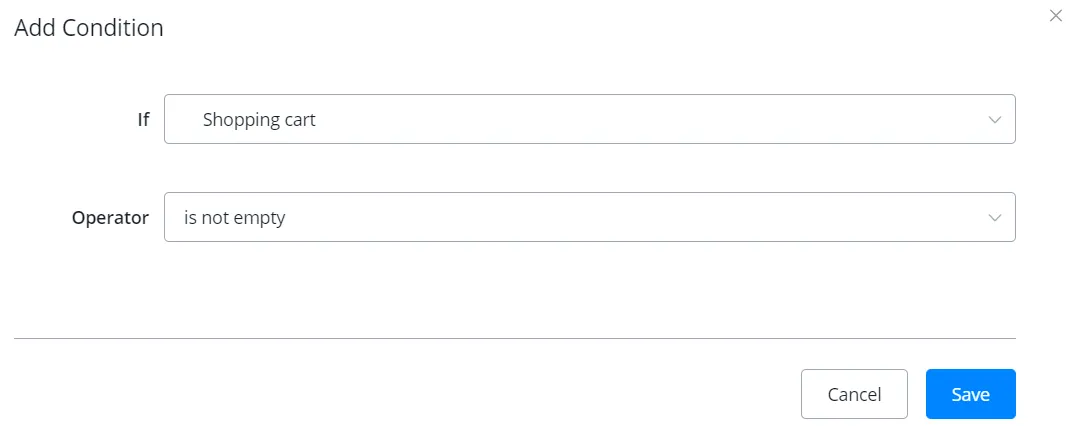
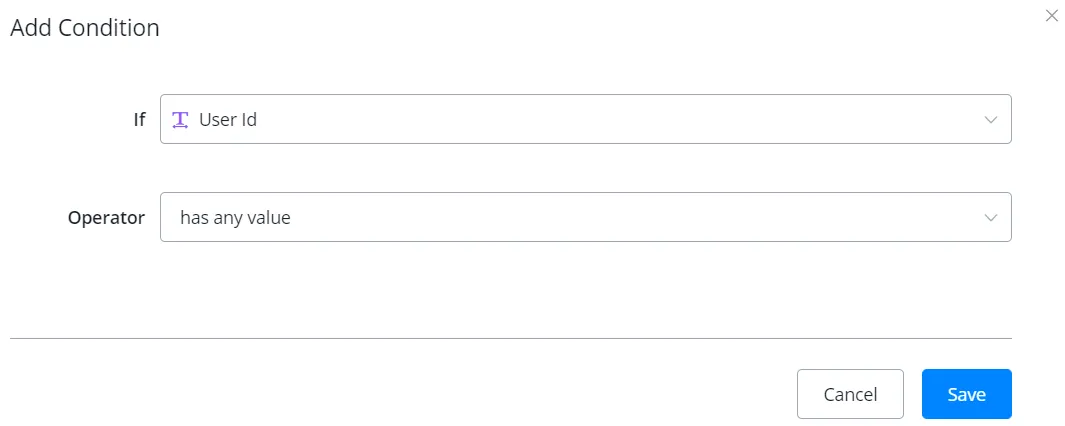
Fill in the rest of the settings, like the message type and the time to send, and click Save.
Send now or schedule
If you choose Now in the schedule, the broadcast goes out as soon as you click Save. If you schedule it for later, you can cancel it any time before it is sent.
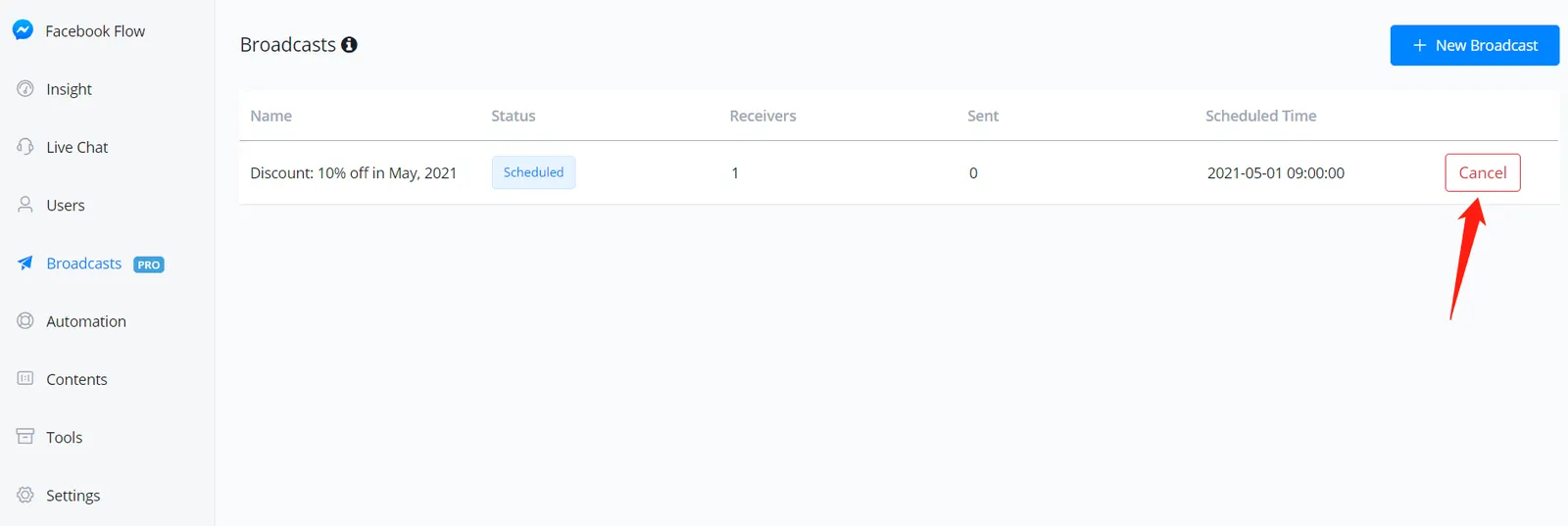
This is also where you check the history of your broadcasts and their data.
Control the delivery speed
Max bot users per minute sets how many users receive the broadcast each minute. Sending gradually makes a large broadcast feel less automated. It starts at 60 and the maximum is 200 users per minute.
Set it in Max bot users per minute while you create the broadcast, with the slider or the number box.
Broadcasts on WhatsApp
WhatsApp only lets you send a free-form message within 24 hours of the user’s last message. Outside that window you need an approved template message.
The usual approach is to handle this inside the sub-flow you broadcast:
- Add a condition that checks whether the user is still within the 24-hour window.
- If they are, send the regular message.
- If they are not, send a template message. You can also send an email if you have their address.
Then go to Broadcasts, choose the audience and send that sub-flow. See Template messages for how to set them up.
Limits and common errors
- Error rate: if a broadcast produces more than 100 errors within 5 minutes, it is paused. GoChat keeps counting every 5 minutes and resumes the broadcast once errors drop below that limit. To find the cause, go to Tools → Error Logs and click Node on an error to open the step that failed.
- Unsubscribed users: the error Broadcast failed, Bot user unsubscribed means the user unsubscribed from your bot. To avoid it, add a condition so the broadcast only goes to subscribed users.
- SMS: if you set telemarketing hours in the SMS channel, broadcasts sent outside those hours are blocked.
See Platform default limits for the rest of the limits.
Send broadcasts through the API
The API can send a broadcast to a list of users, or to everyone with a tag or in a segment, and cancel the pending recipients of a broadcast. See API docs for how to authenticate.