
Analytics shows how your bot is doing: how many messages it sends and receives, how fast your agents reply, how users subscribe and unsubscribe, and how much AI it uses. Open your bot and click Analytics in the left-hand menu.
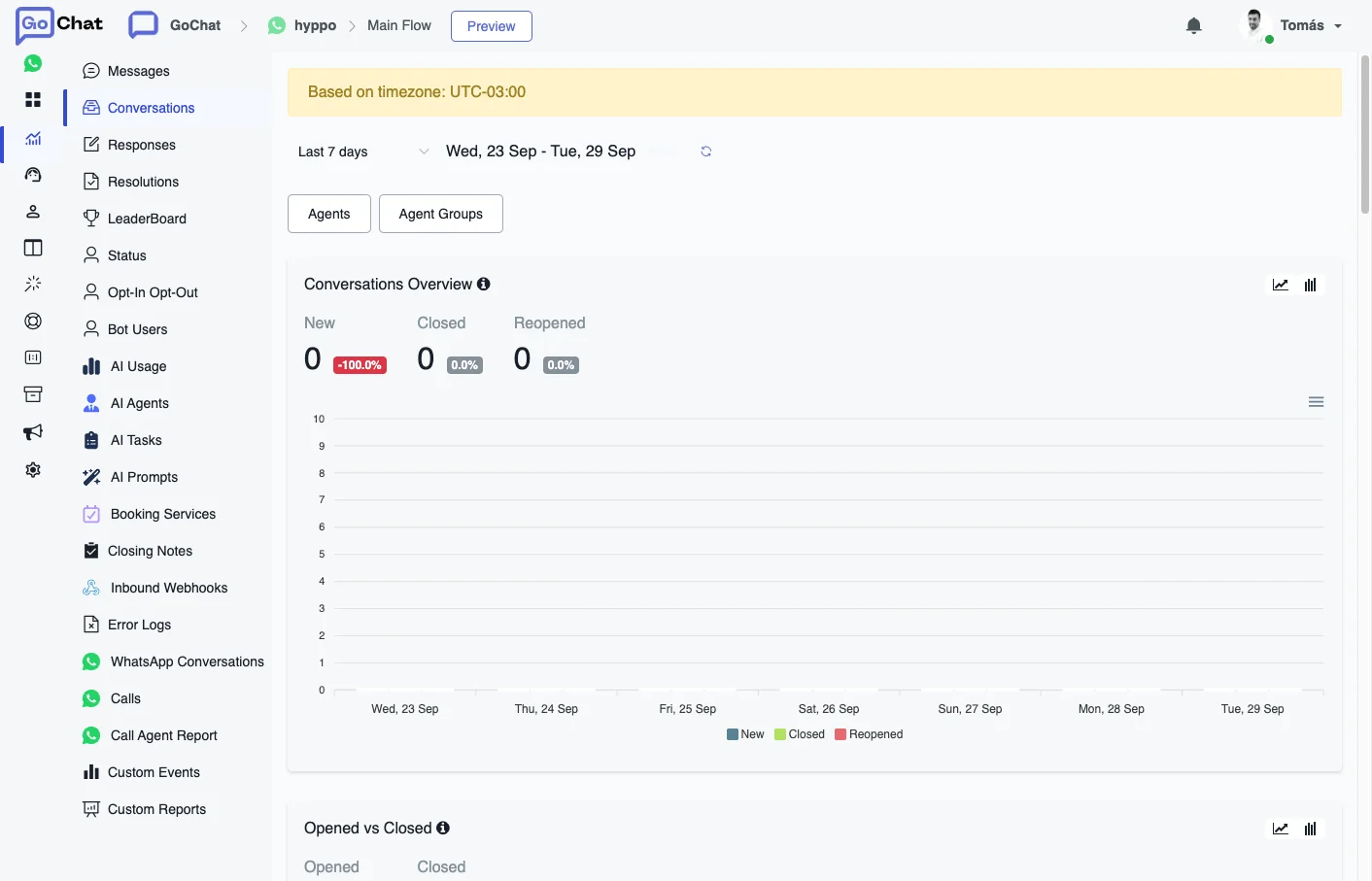
How the reports work
- Time zone: the notice at the top, Based on timezone, tells you which time zone the dates use. It is the time zone of your workspace, which you set in Profile.
- Date range: choose a preset like Last 7 days or pick your own dates. Each number is compared to the previous period of the same length, with the change in percent.
- Downloads: every chart has Download SVG, Download PNG and Download CSV, so you can take the image or the raw data to another tool.
The reports about agents (conversations, responses, resolutions and the leaderboard) need Conversation Mode turned on. See Conversation.
Reports
The left-hand menu lists the reports in this order. They are grouped in these pages:
| Page | Reports |
|---|---|
| Conversations and agents | Conversations, Responses, Resolutions, LeaderBoard, Status |
| Messages and users | Messages, Opt-In Opt-Out, Bot Users, WhatsApp Conversations |
| AI reports | AI Usage, AI Agents, AI Tasks, AI Prompts |
| Operations | Booking Services, Closing Notes, Inbound Webhooks, Error Logs, Calls, Call Agent Report, Custom Events, Custom Reports |