
An AI Function lets an AI Agent do something outside the conversation: capture user details, look up data in another system or book an appointment. The agent decides when to call the function, collects the values it needs from the user and runs a workflow with them. The workflow can return a result to the agent so the conversation continues with that information.
Create an AI Function
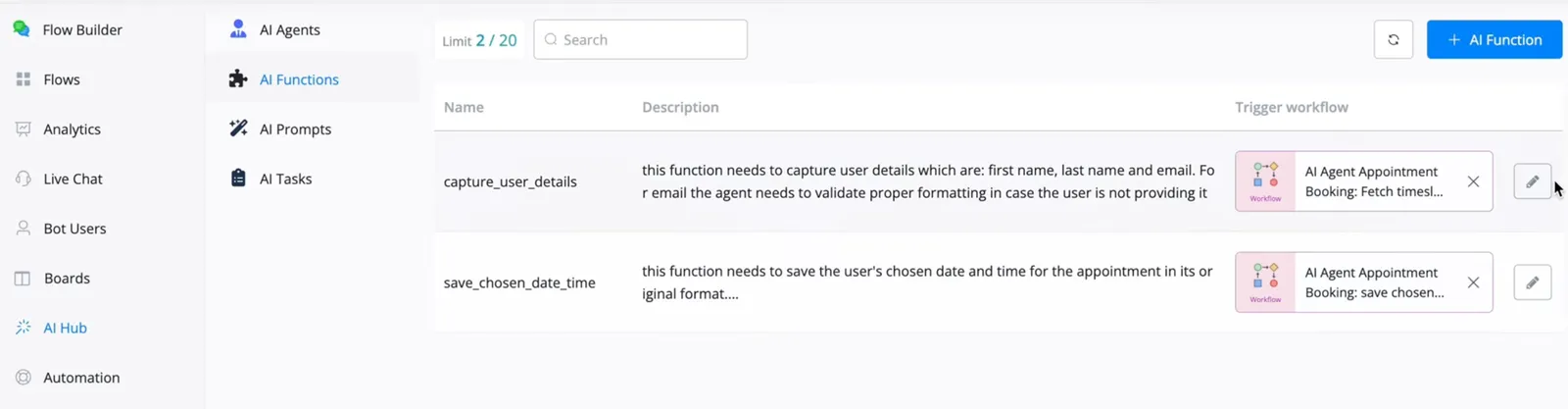
- In your bot, go to AI Hub → AI Functions and click + AI Function.
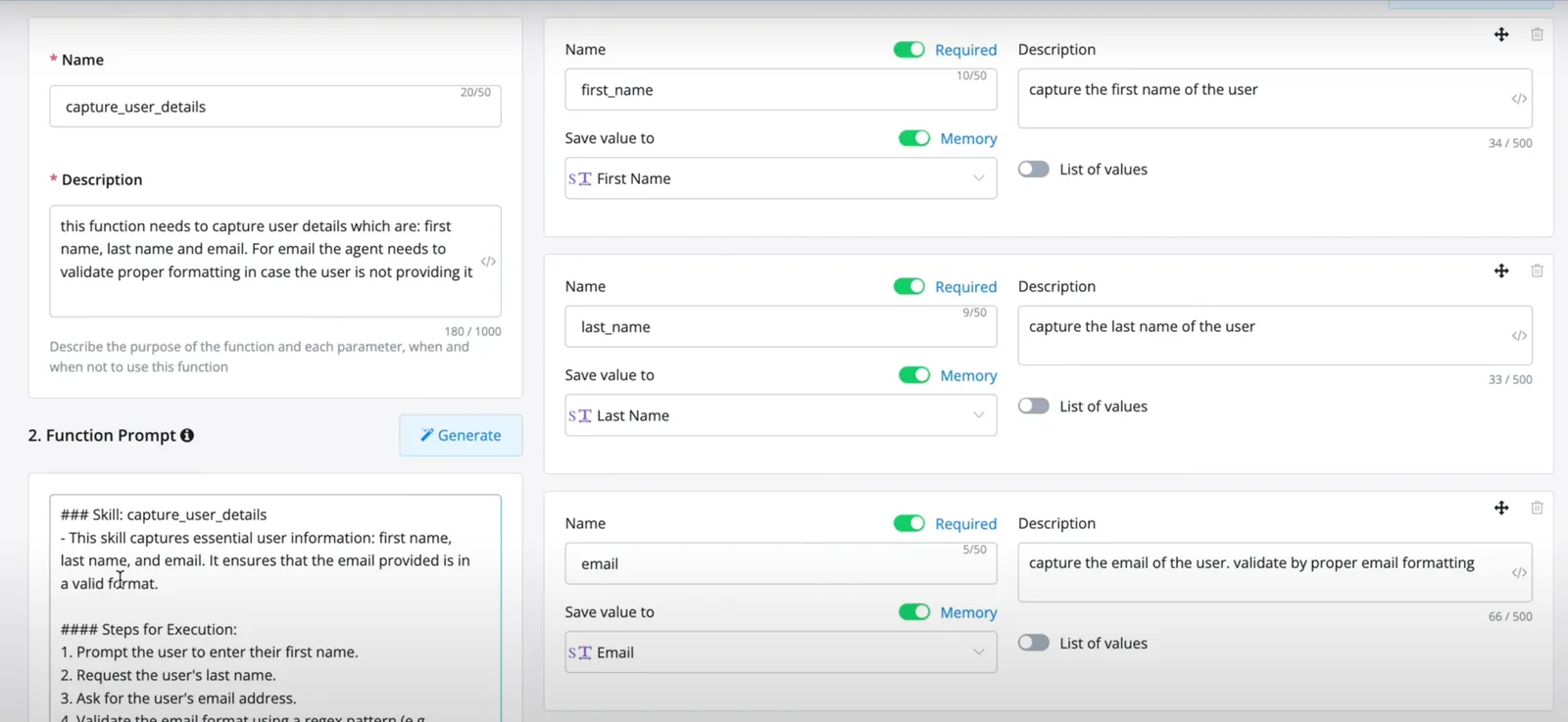
- Give it a name and a description. The description tells the agent what the function does and when to use it. For example: “This function captures the user’s first name, last name and email. The agent must validate the email format if the user gives an invalid one.”
- Write the function prompt: what the function has to do, the steps, the constraints and the conditions. Click Generate to create a first version from the description and the parameters, then review it and adjust it.
- Add the parameters the function needs to collect, like first name, last name and email. For each one:
- Name and Description: what the value is, so the agent knows what to ask for.
- Required: the function can’t run until the agent has this value.
- Memory: the agent checks the conversation history first. If the user already gave the value, it doesn’t ask again and moves on to the next parameter.
- Save value to: the custom field where the value is saved.
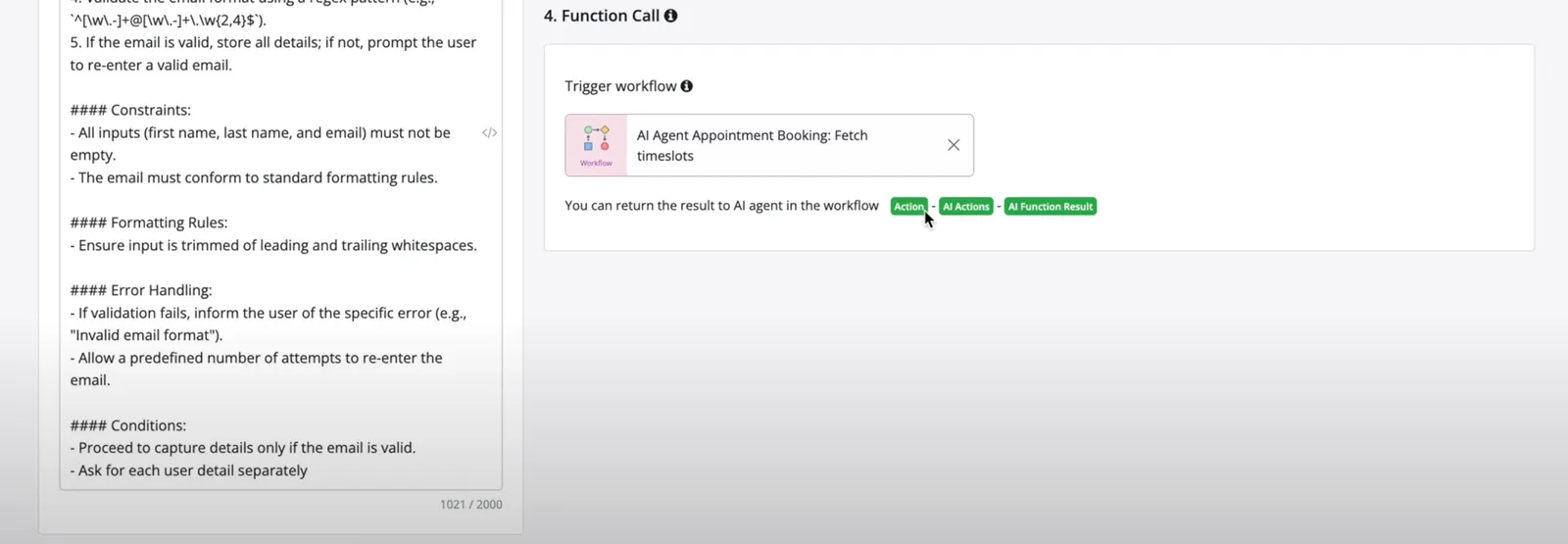
- In Trigger workflow, choose the workflow that runs when the function is called. Only workflows can be attached.
- Save the AI Function.
A useful rule to add to the function prompt: “Ask for each user detail separately, and only call the function when all the parameters are captured.”
What the workflow can do
The workflow receives the values the agent collected. From there you can:
- Send them to another platform through a native integration, like Google Sheets, or through an External Request.
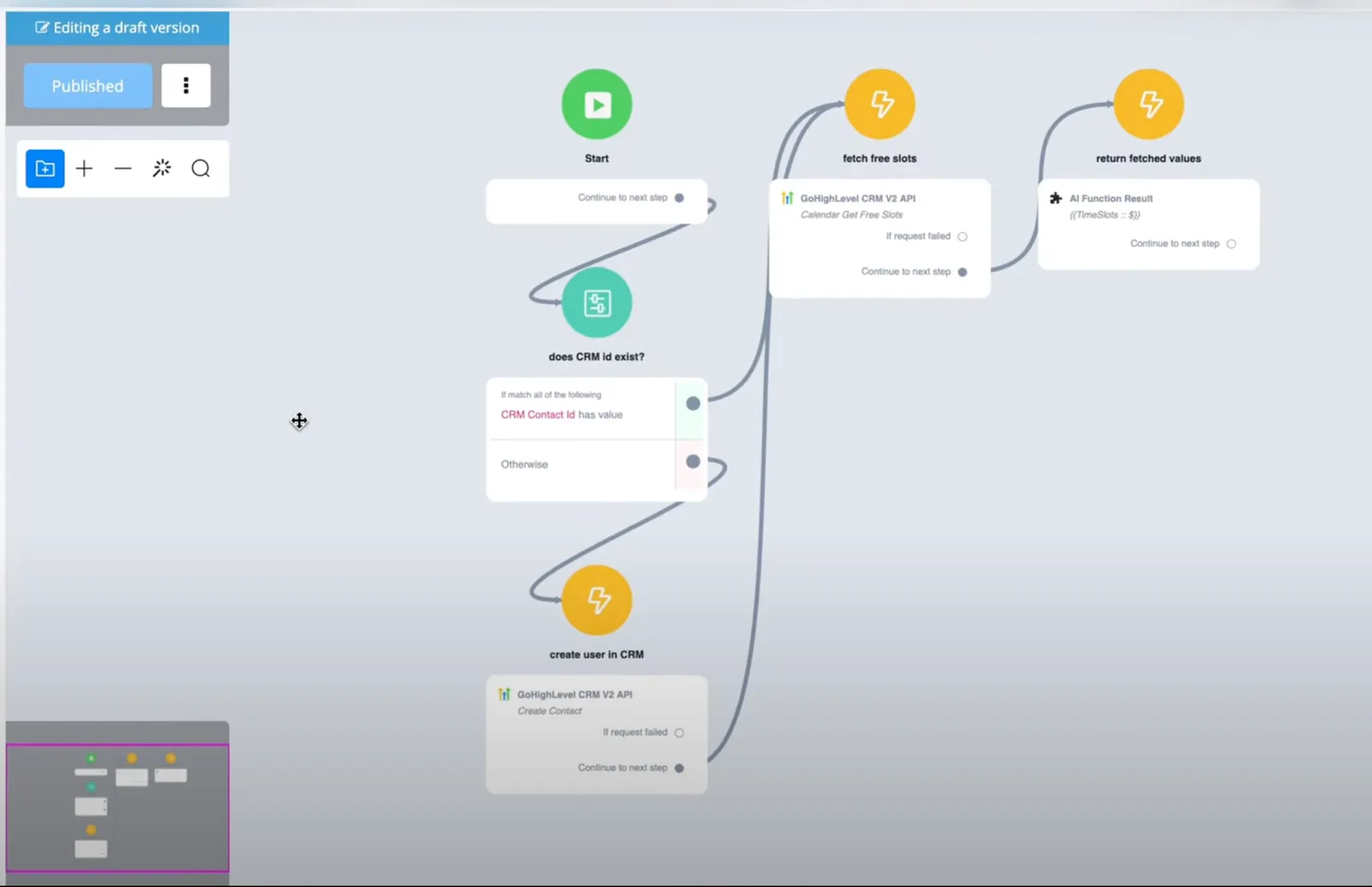
- Fetch information from an external source, like the available time slots in a calendar, and return it to the agent.
- Send media or other dynamic content with Send Message steps.
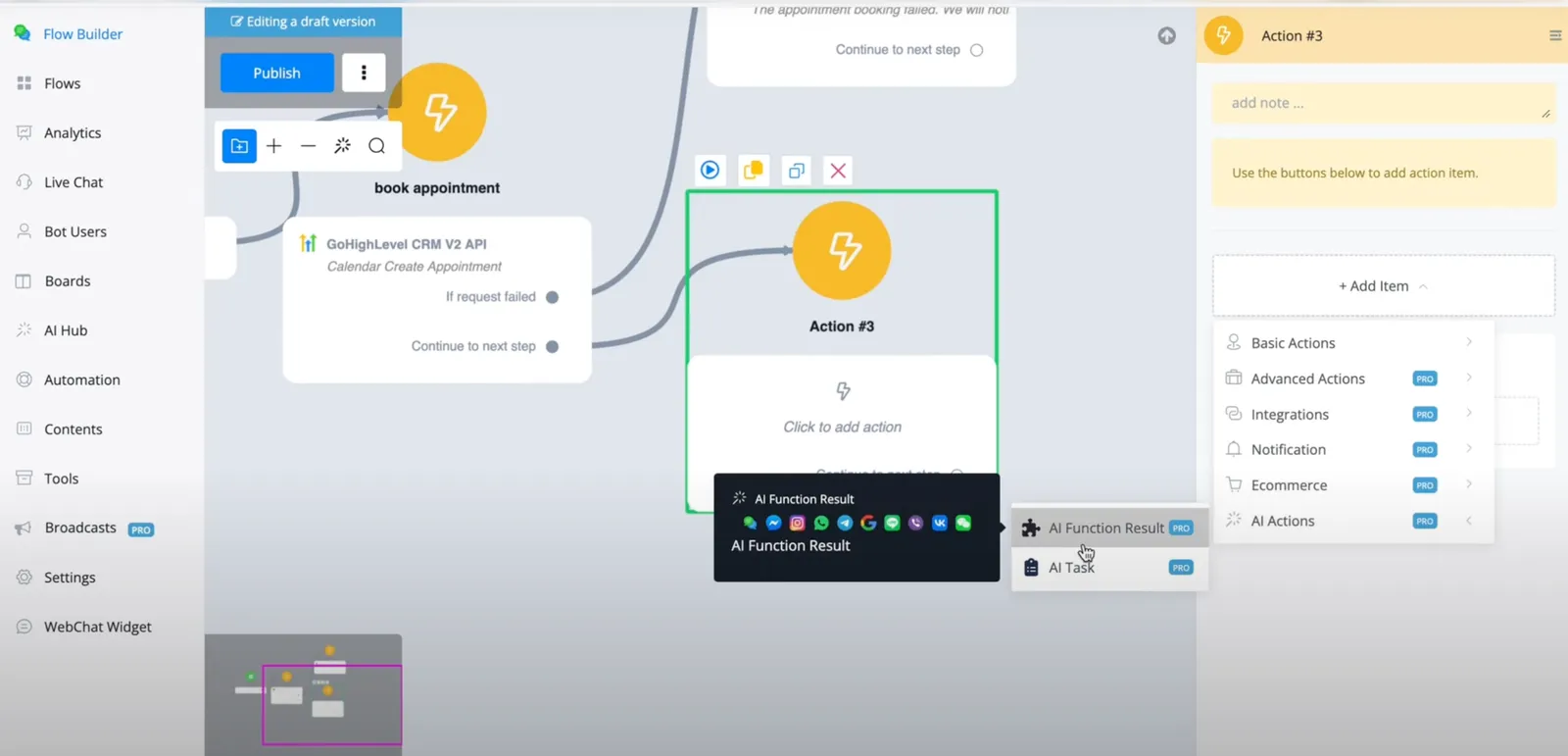
To return data to the agent, add the AI Function Result step at the end of the workflow. It’s in the action block, under AI Actions. Whatever you put there is what the agent receives after the function runs.
Add the function to an agent
An AI Agent can only use the functions you select for it. Open the agent in AI Hub → AI Agents and choose the function under AI Functions. When you select or deselect a function, its prompt appears or disappears from the agent’s prompt overview.
To set up the agent itself, see AI Agents.
If the function doesn’t run
- Check that the agent prompt says clearly when to call the function.
- Check that the function is selected in the agent.
- If a value isn’t saved, review the parameter and the custom field in Save value to.