
WhatsApp Flows are forms that open inside WhatsApp. The user fills in one or more screens, like a sign-up or a contact form, without leaving the chat, and the answers come back to your bot.
Where to find them
Go to Contents → WhatsApp Flows. The list shows each flow with its name, id and JSON version, its category, its screens and its status.
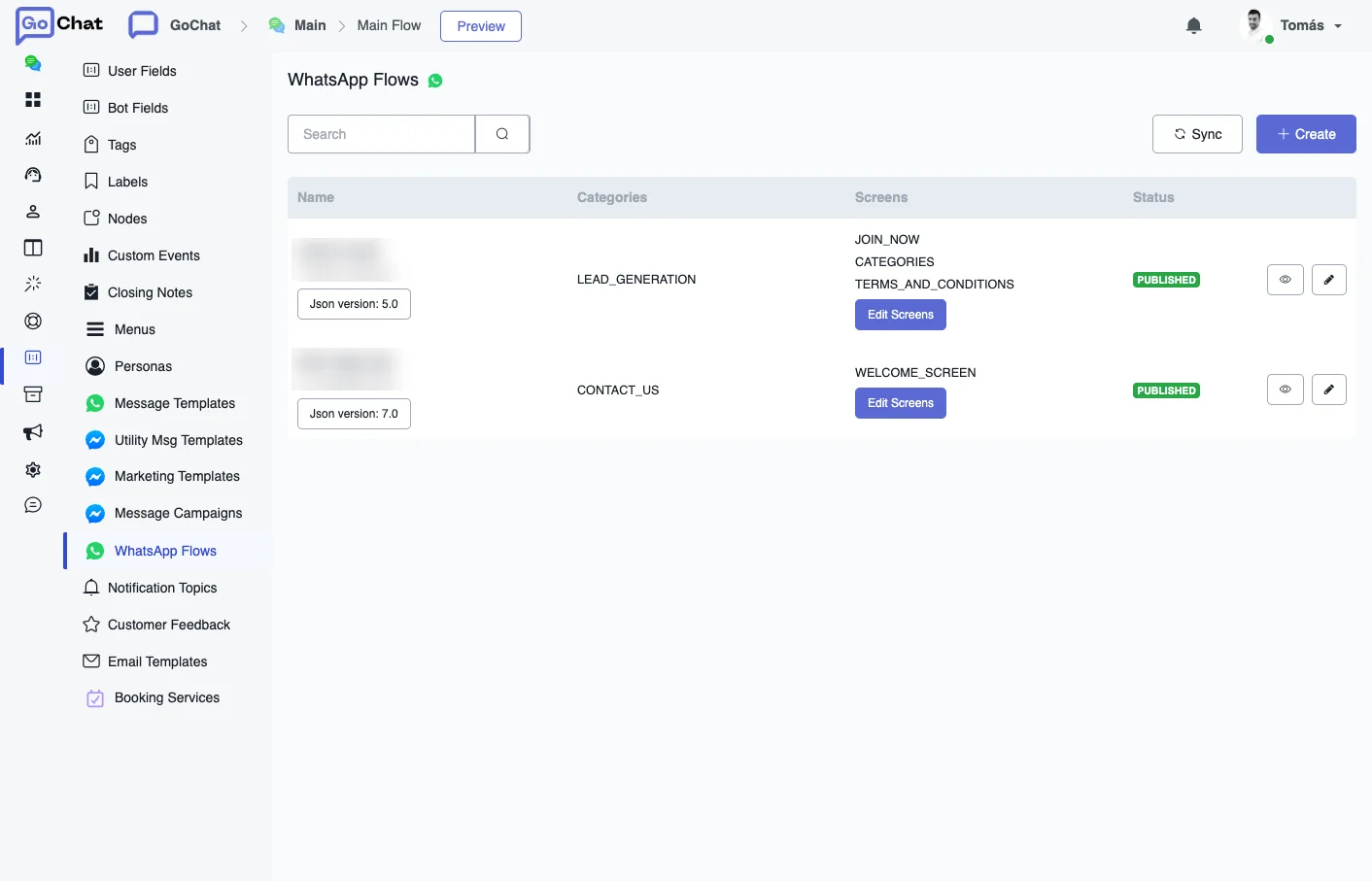
- Sync brings the flows you already have in your WhatsApp account.
- + Create starts a new one.
- The eye icon opens a preview and the pencil edits the flow.
Create a flow
- Click + Create and give the flow a name, for example “Lead signup”.
- Choose the category that best describes it, like LEAD_GENERATION or CONTACT_US.
- Build the screens in the editor:
- Edit the welcome screen: its heading and text.
- Add fields to capture data, like name or email, with the input type (text, number and others) and whether they are required.
- Add more screens to guide the user through several steps.
- Use the preview to test it as a user would.
- Click Publish and confirm.
Once a flow is published you can still change it with Edit Screens, without unpublishing it or stopping the automations that use it.
Send a flow from your bot
- In the Flow Builder, add a Send Message step and choose Others → WhatsApp Flow.
- Click Edit and fill in the Body, the Button Text and the flow to open.
- In Inputs, map each field of the form to a custom user field, for example the name to
{{user_name}}and the email to{{user_email}}. The form opens already filled in with what you know about the user. - Optionally, save the whole answer in a JSON field to use it later in the flow.
- Save and test it to check that the answers end up in the right fields.
Use them on other channels
If your bot is omnichannel, the same step works on other channels, like Webchat, Messenger or Instagram. There the flow is sent as a message with a button, and the button opens the same form in a web view. The answers reach the bot the same way as on WhatsApp. This only works on channels linked through Omni-Channel.