
Besides writing a reply, agents can send several files at once, schedule a message for later and ask the AI assistant for a draft. For pre-written replies, see Shortcuts.
Send several files at once
You can send up to 5 files or images in the same message.
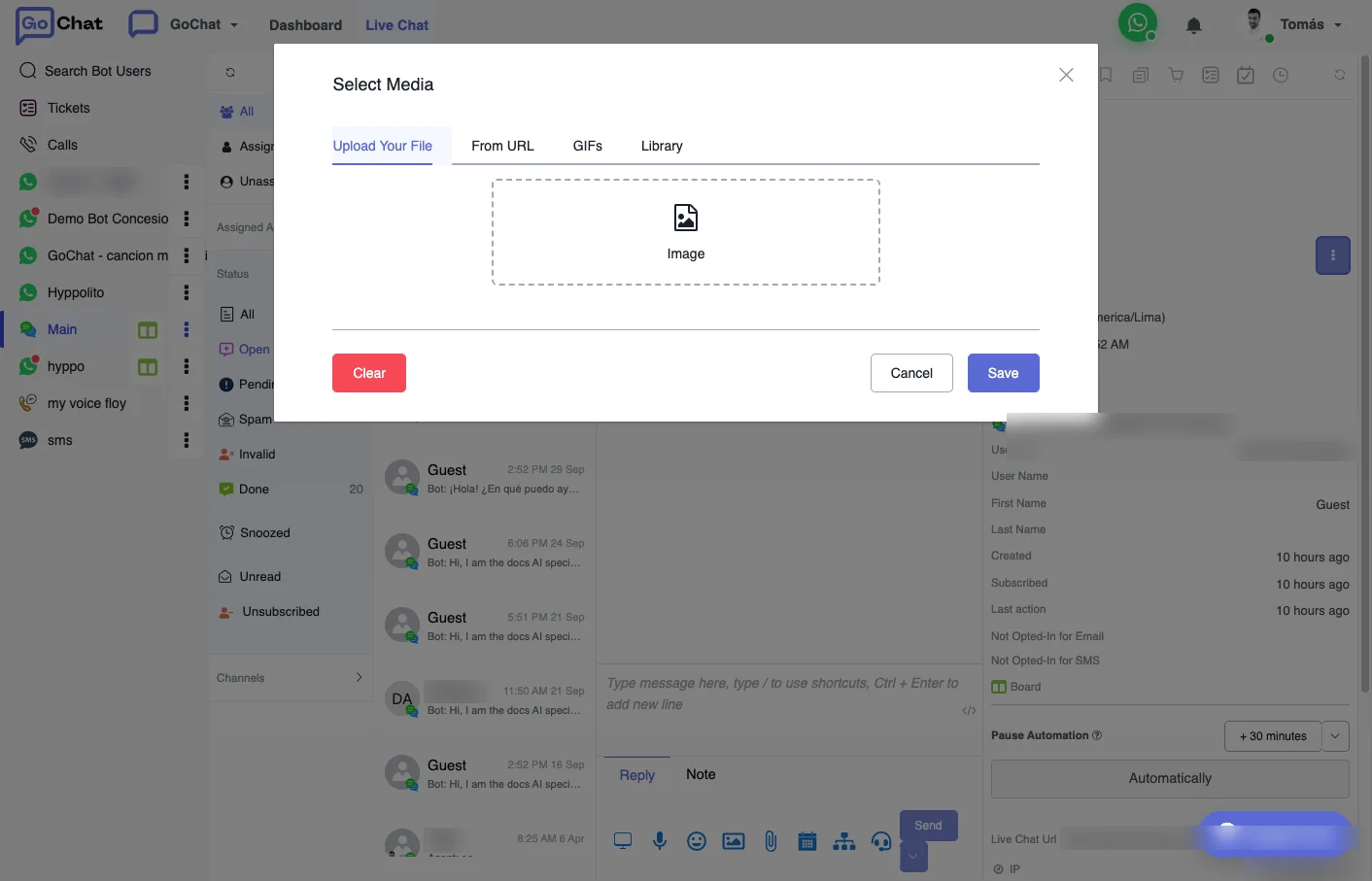
- Open the conversation and click the image or attachment icon in the reply box.
- In the Select Media window, pick your files:
- Upload Your File: upload them from your computer, one by one.
- Library: click the files you already uploaded before. A blue check marks each one, and the counter shows how many you picked (for example
5 / 5 selected).
- Click Save. The files show up as thumbnails in the reply box.
- Click Send.
Each file arrives in the conversation as a separate message. Dragging several files straight into the reply box is not supported yet.
Schedule a message
Write the message, open the arrow next to Send and choose when to send it: preset times from 5 minutes up to 24 hours, or a custom time. Custom times use the time zone of your workspace.
On WhatsApp you can schedule a normal reply or a template message. Normal messages only work within 24 hours, so for anything later you have to choose an approved template. See WhatsApp messaging window.
The calendar icon in the reply box is something else: it creates a calendar file (.ics) with a title, start and end time, location, description and URL, to send it to the user.
A scheduled message cannot be edited. In the conversation you can send it now or cancel it. To see all of them, go to Tools → Scheduled Messages: the list shows the time, the type, the content or template, the bot user and who created it, and you can send each one now or delete it.
Draft a reply with the Chat Assistant
The Chat Assistant writes a reply suggestion with AI.
- In the conversation, click Assistant (the robot icon under the reply box).
- Write what you need, for example “Explain the refund policy in simple terms”, or click Select to use a saved prompt.
- Click Generate. If you do not like the result, click Regenerate.
- Edit the text if needed and click Use Suggestion.
- Back in the reply box, click Send.
To save a prompt for later, click + New in the assistant, give it a Title and the Prompt Content, and click Save. It will show up in Select.
Always read the suggestion before sending it and check that it matches the way your brand talks.