
Some requests can’t be solved inside the conversation: they need another team, more time or a follow-up. Tickets let you log those cases in lists, assign them to your team and track their status until they are closed.
Tickets is an add-on. If you don’t see it in your workspace, contact GoChat support to enable it.
Lists
Go to Tickets in the left-hand menu of your workspace dashboard (outside the bot). Tickets are organized in lists: each list is a type of case, like support requests or sales follow-ups, with its own fields and views.
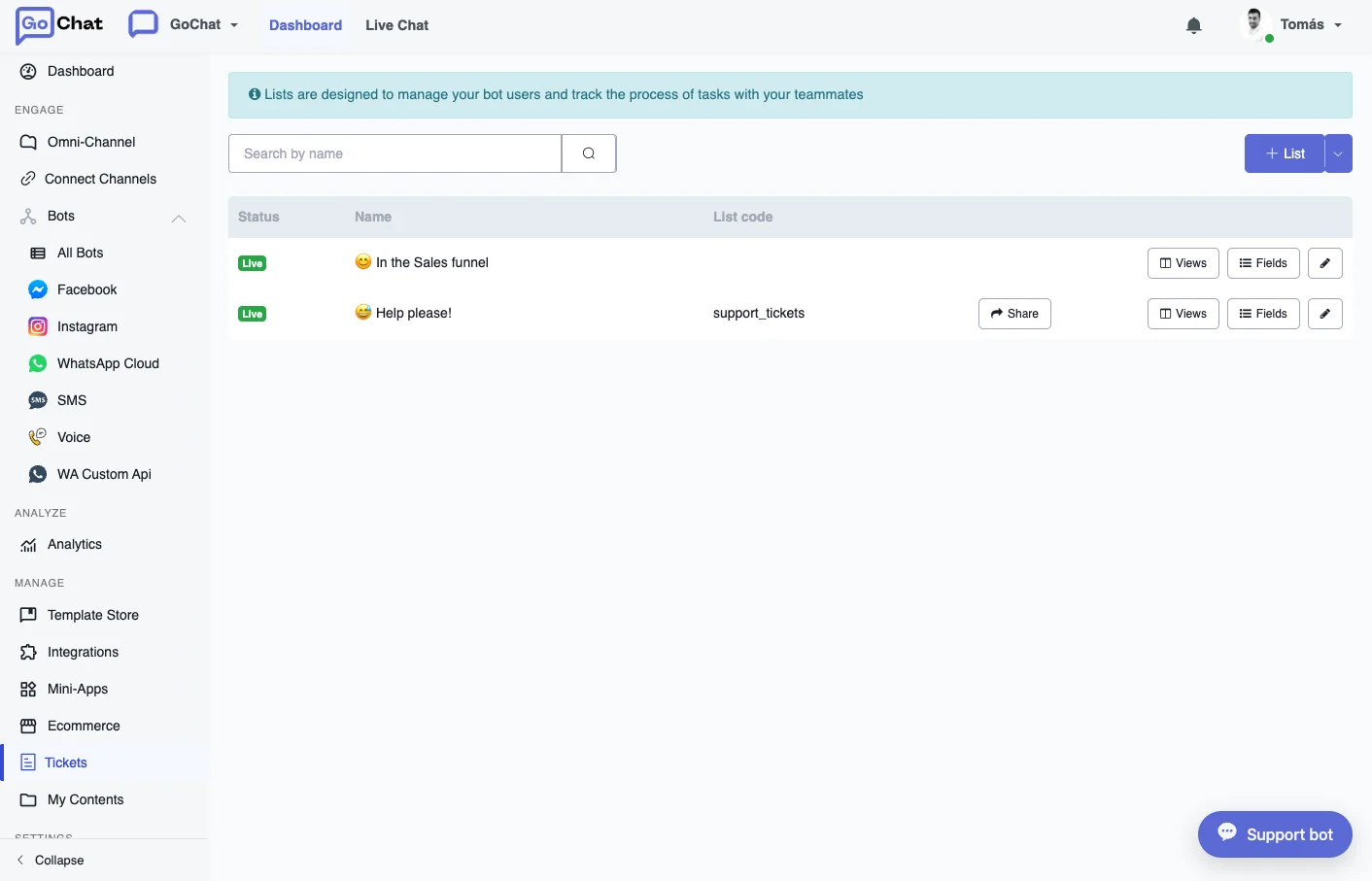
- Click + List to create a list. Each list has a Status (for example Live), a Name and a List code, which is how flows and the API refer to it.
- Each row has buttons for Share, Views, Fields and edit.
- Share generates a code to share the list. You choose in how many days it expires and click Generate Code.
Fields
Fields opens List Fields, where you define what each ticket stores.
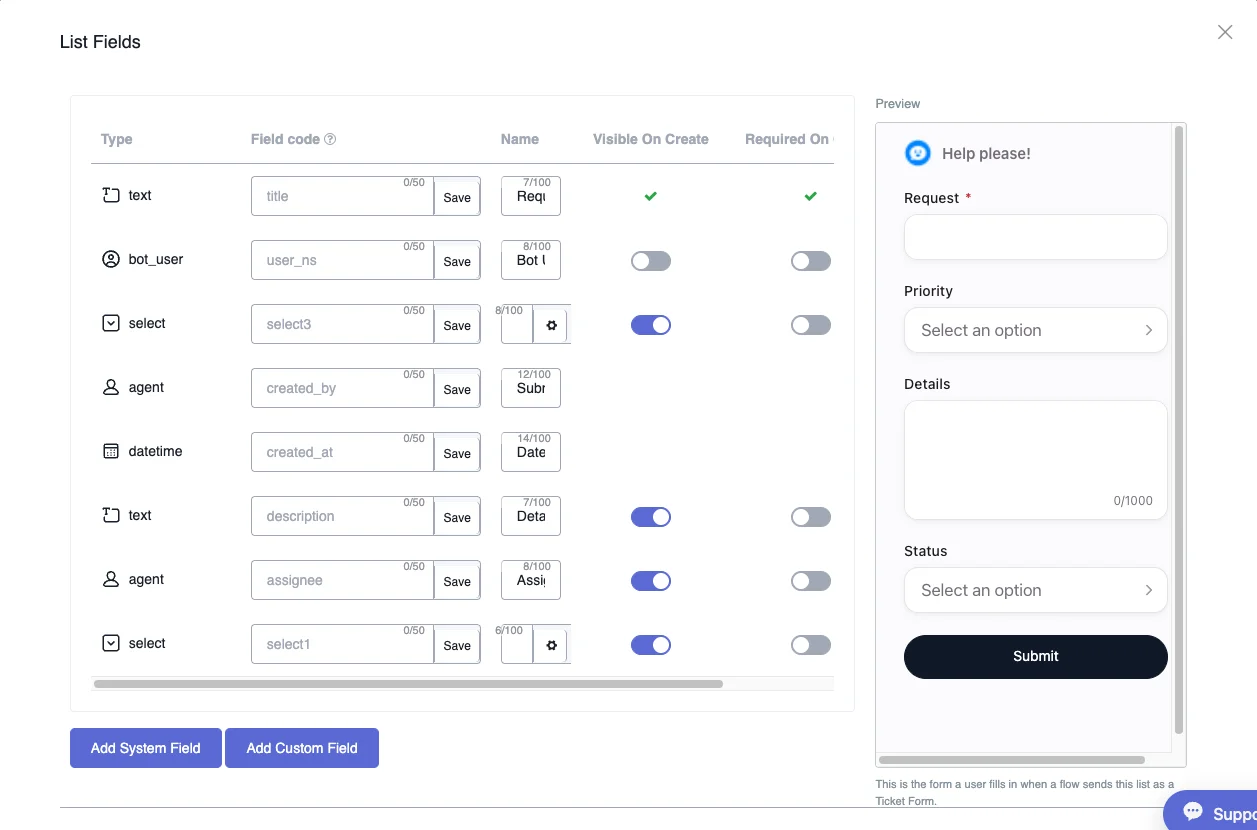
- Each field has a Type (text, bot_user, select, agent, datetime), a Field code and a Name. Lists come with fields like the title, the bot user, who created it, the creation date, the description and the assignee.
- Visible On Create shows the field when someone creates a ticket, and Required On Create makes it mandatory.
- Add System Field adds one of the available system fields. Add Custom Field adds your own; each one you add lowers the number of fields you have left.
- For a select field, use the gear icon to set its options, like the priority or the status.
On the right, Preview shows the form a user fills in when a flow sends this list as a Ticket Form.
Views
Views opens the tickets of the list. Choose a view in the selector at the top, like Assigned to me, and each ticket shows up as a card with its title, priority, who submitted it, the date, the details, the assignee, the status and its comments.
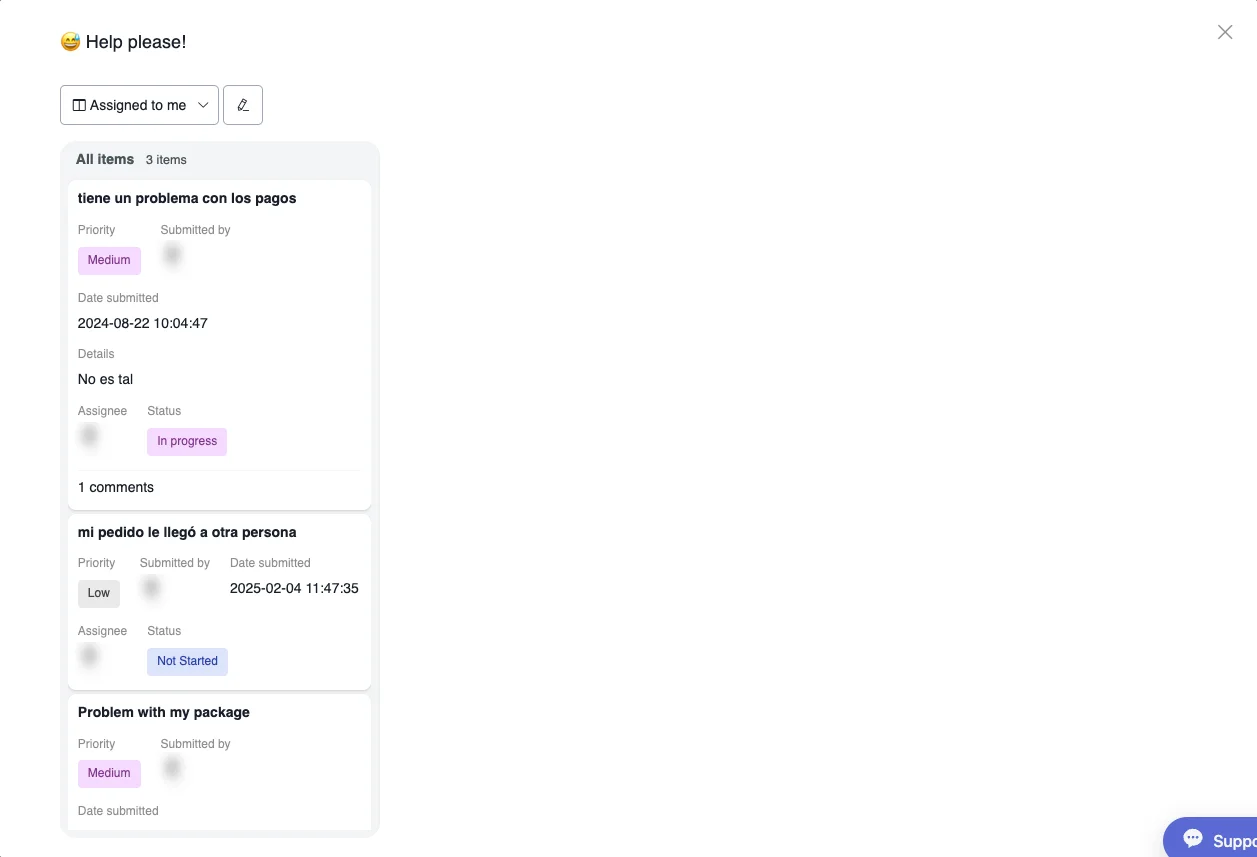
By default there are views like Assigned to me, Done, Not Done, Status and All items, and you can create more. With the pencil icon you edit the current view:
- Layout: Table, Board or Chart. In Board you can drag tickets to reorder them.
- Group By: groups the tickets, for example by status, assignee, agent or rating.
- Chart titles: with the Chart layout you can name the Current Items Chart, the New Items Chart and the Change Logs Chart.
Owners and admins can hide views from some roles. For example, if you hide All items from an admin, that admin only sees the tickets the other views allow.
Create tickets from Live Chat
In a Live Chat conversation, you can add a ticket from the user’s profile panel. GoChat asks for the required fields of the list and adds the ticket. See Live Chat.
Use tickets in flows
In the Flow Builder, add an Action step and choose Tickets API under the advanced actions. The available actions are:
- Lists: gets all the lists.
- List Tickets: gets the tickets of a list.
- List Field Options: gets the fields of a list.
- Create Ticket, Update Ticket, Get Ticket and Delete Ticket.
- Add Comment: adds a comment to a ticket.
There are also ticket triggers, so a change in a ticket can start an automation. You can save the data they bring in a JSON field and act on it. See Triggers. To work with tickets from outside GoChat, see API docs.