
A board is a Kanban-style pipeline inside GoChat. Each column is a stage and each card is a bot user, so you can follow your contacts through a funnel without leaving the platform. It works for a sales pipeline, customer support or task tracking.
For example, a sales pipeline could have these columns: New Lead, Contacted, Demo Scheduled, Proposal Sent and Closed Won.
Open your bot and click Boards in the left-hand menu.
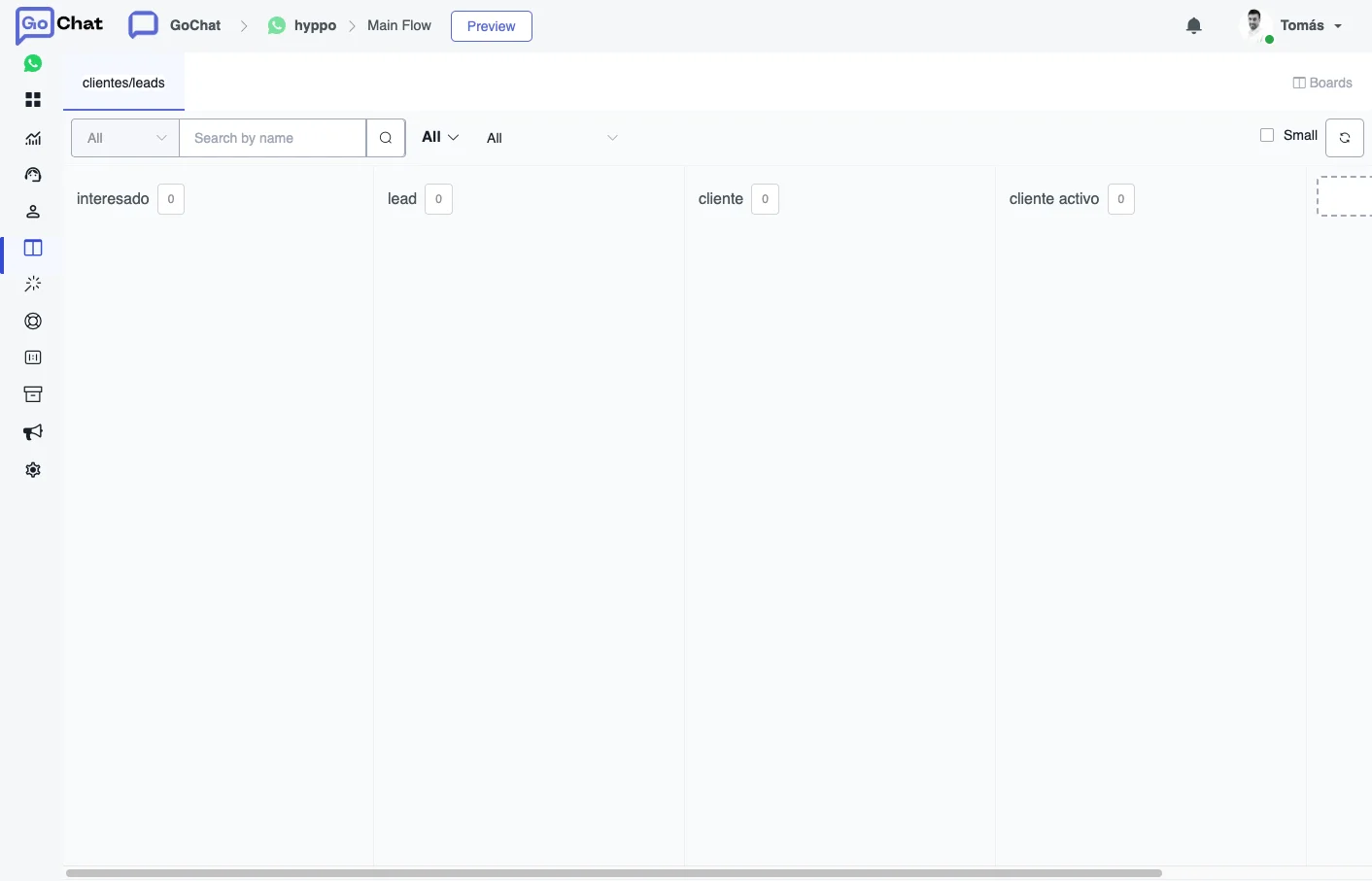
Each board has its own tab at the top. Boards, in the top right corner, is where you manage them. Every column shows how many cards it has.
Set up the columns
- To create your first board, give it a name and add its columns with Add Column, then click Save.
- To add a column later, click New Column, name it and save it.
- Drag the columns left or right to change their order.
- The 3-dots menu of each column lets you rename or delete it.
Above the columns you can filter the cards and search them with Search by name. Small shows compact cards, and the button next to it refreshes the board.
Move users through the board
There are four ways to put a user in a column:
- By hand: drag the card from one column to another. Click a card to open the user and talk to them.
- From a flow: add an Action step, go to Advanced Actions and choose Move to Board. Pick the column and, if you want, a note: Note Action can be No Change, Update Note or Clear Note, and the note can use fields like
{{First Name}}. This way a user moves on their own when they reach a point of the flow, for example after booking a demo. - From Live Chat: in the right-hand panel of the conversation, Board shows where the user is. Click the pencil icon to change it.
- From Bot Users: open a user and change their board with the pencil icon, or filter users, select them and use the bulk action Move to Board. See Bot Users.