
Go to Settings → Live Chat inside the bot. Here you decide what each role sees in Live Chat and how it behaves for your agents. Each block has its own Save button.
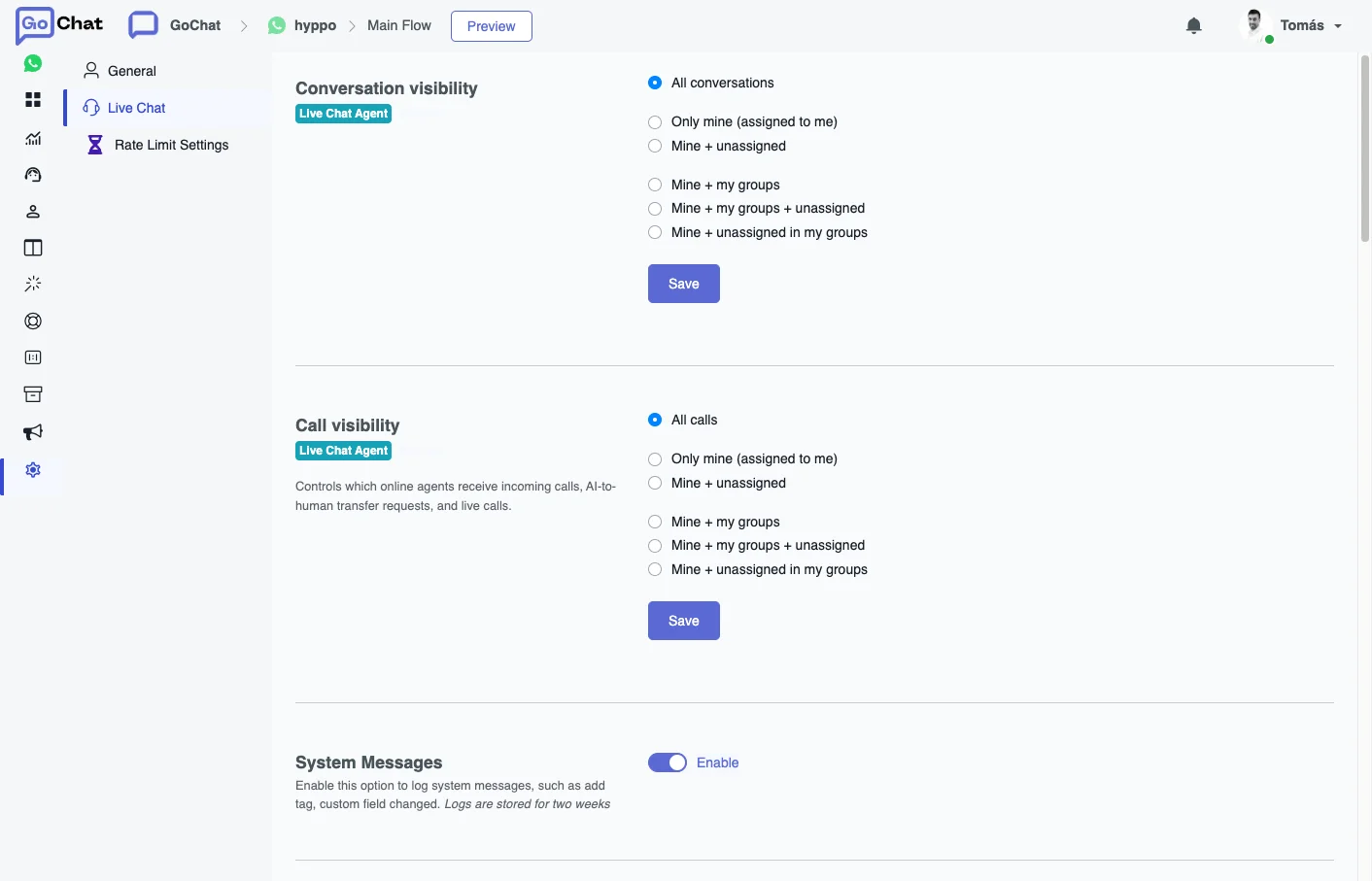
Conversation visibility
Controls which conversations each role sees. You set it per role, for example Live Chat Agent or Member:
- All conversations (default): they see every conversation.
- Only mine (assigned to me): only the conversations assigned to them.
- Mine + unassigned: theirs plus the ones not assigned to any agent or agent group.
- Mine + my groups: theirs plus the ones assigned to the groups they belong to.
- Mine + my groups + unassigned: the three together.
- Mine + unassigned in my groups: theirs plus the unassigned ones in their groups.
Owners and admins always see all conversations, whatever you choose. After a change, agents need to refresh the page to see it applied. Inside each agent group you can also limit what its agents see, in Workspace Settings → Agent Groups.
Call visibility
Same options as above, but for calls: it controls which online agents receive incoming calls, AI-to-human transfer requests and live calls.
System Messages and audio
- System Messages: logs system messages in the conversation, such as a tag added or a custom field changed. They are kept for two weeks.
- Audio transcription: automatically transcribes to text any audio the user sends.
Live Chat Features
Options to show, hide or change parts of Live Chat, grouped in three blocks.
General Chat Behavior
- Disable Enter key to send message: Enter adds a new line instead of sending.
- Any incoming messages to open the conversation if status is Done and if status is Pending: a new message from the user moves the conversation back to Open.
- Continue viewing chat messages after status changed in live chat: the conversation stays on screen after you change its status.
- When bot is paused, append user and agent messages to AI Agent Messages if it is not empty: keeps the AI agent’s history up to date with what was said while the bot was paused.
Agent Controls
- Disable reassign by agent: agents can’t reassign a conversation to someone else.
- Mark as read only if viewed by assigned agent: the conversation stays unread if an admin or supervisor opens it.
- Do not automatically assign an unassigned conversation when an agent replies.
- Prepend agent name to the message sent by agent: the agent’s name goes before each message, for example “John: Hello, how can I help you?”. It works on web chat and WhatsApp.
- Show only last 4 digits from phone number in live chat: agents and supervisors only see the last 4 digits of the user’s phone.
- Set default to not allow sending in live chat for new WhatsApp Template: new templates are not available in Live Chat until you allow them.
UI & System Visibility
- Hide System Messages: for everyone, or only for agents and supervisors.
- Display First Name and Last Name in the conversation list, fallback to User Name.
Closing Notes
- Enable Closing Notes: agents can leave a note when they close a conversation.
- Make Closing Note Category Mandatory: agents have to choose a category to move a conversation to Done.
How agents use them is in Organize conversations.
Custom Url
Lets agents open an external page for the bot user inside Live Chat, in an iframe, with the Custom Url icon. It is useful to open the contact in your CRM without leaving GoChat. Write the URL and add the variables you need: {workspace_id}, {workspace_name}, {user_name}, {user_email}, {user_id}, {user_lang_code}, {flow_ns}, {bot_user_ns}, {bot_user_id}, {bot_user_phone}, {bot_user_email}, {bot_user_name} and {crm_contact_id}. In Target you choose how the window opens.
The site you open has to allow being shown in an iframe or popup. If it doesn’t, the feature won’t work.
Live Chat Integration
Here you choose another platform to hand the conversation to when the bot automation is paused. The platform has to be connected first in the workspace Integrations.
Other settings
- Live Chat Auto Pause Minutes: when an agent sends a message to the user, the bot automation pauses for this many minutes.
- Live Chat SMS Sender: the phone number used to send SMS from Live Chat. It has to be connected in the workspace Integrations.
- Live Chat Email Profile: the email profile used to send emails from Live Chat. It has to be set up in the SMTP section of Integrations.
Live Chat Desktop Notifications
Browser notifications when a new message arrives. You choose whether to be notified for conversations assigned to you, for conversations in the unassigned folder, or both. Mute Sound turns off the sound.