
An AI agent holds the conversation with your users. You define who it is, what it can do and what it must not do, and you pick the AI model that runs it. Each bot can have up to 20 agents.
Create an agent
Go to AI Hub → AI Agents and click + AI Agent. The form has three blocks on the left and the prompt on the right.
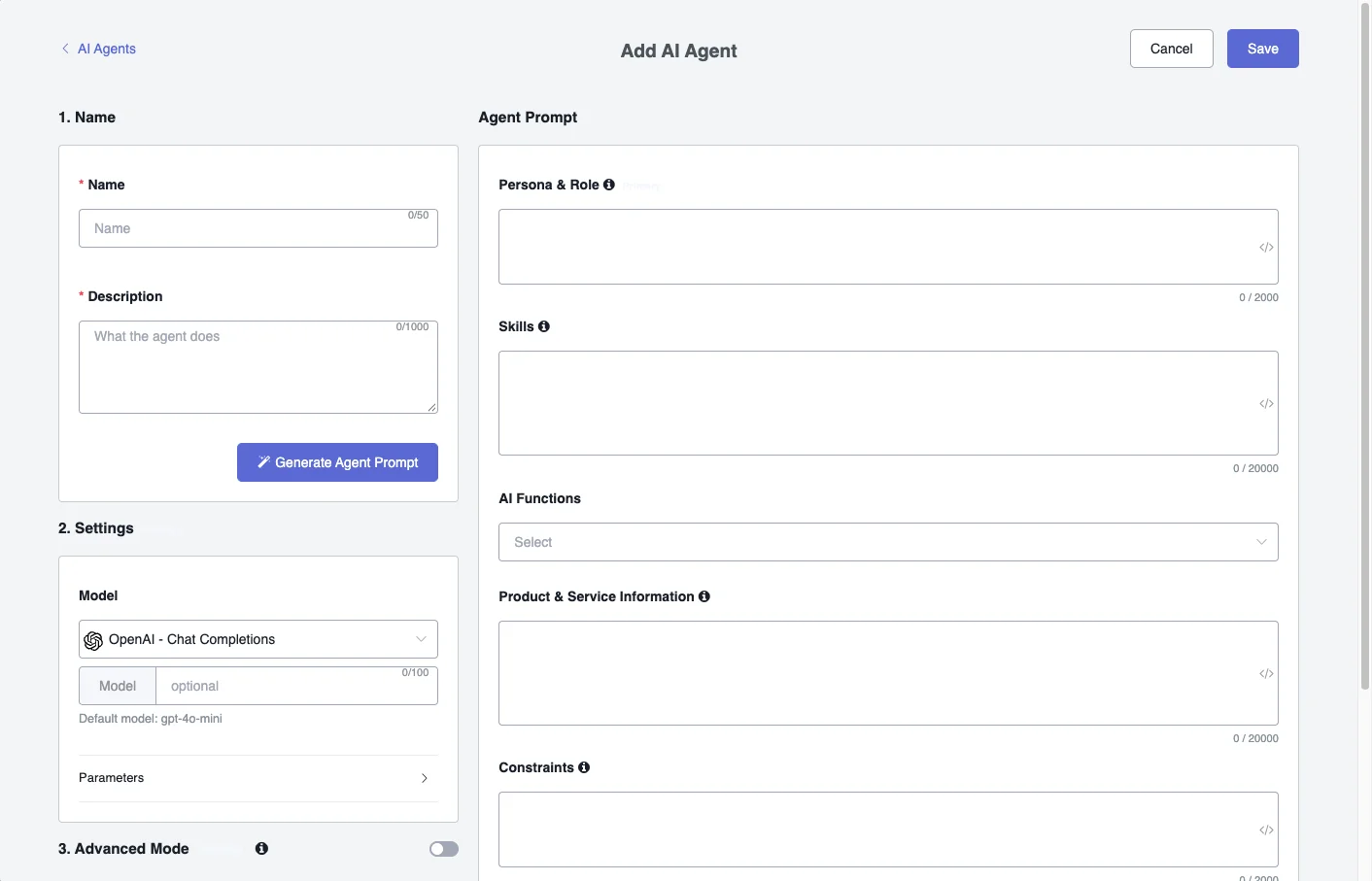
1. Name
- Name: up to 50 characters, for example “Appointment Booking Agent”.
- Description: what the agent does, up to 1000 characters. Be specific: the description is what Generate Agent Prompt uses.
- Generate Agent Prompt: fills in the prompt sections on the right from the description. Review the result before saving.
2. Settings
Model is where you choose the provider:
- OpenAI - Responses
- xAI - Responses
- OpenAI - Chat Completions
- DeepSeek
- xAI
- Claude
- Gemini
- Groq
The Model field below is optional. If you leave it empty, the agent uses the default model of that provider, which is shown under the field.
Tools (OpenAI - Responses, xAI - Responses) only appears with those two providers. It lets the agent use:
- MCP Servers: external services you connected in MCP Servers.
- AI Knowledge Base (OpenAI - Responses): your files in the AI Knowledge Base. Only with OpenAI - Responses.
- Web Search: searches the web while it answers. It only works if the model supports it.
Parameters adjust how the model answers:
- Load presets
- Temperature: lower values give more predictable answers, higher values more varied ones.
- Number of chat messages before auto summarize: after that many messages, older ones are summarized to save space.
- Max tokens: the maximum length of each answer.
- Output format: Text, Markdown or JSON.
3. Advanced Mode
A toggle at the end of the settings.
Agent Prompt
The prompt is split into sections, each with its own limit:
| Section | Limit | What goes there |
|---|---|---|
| Persona & Role | 2000 | Who the agent is, what it is responsible for and its tone. |
| Skills | 20000 | The steps it follows for each thing it can do. |
| AI Functions | The AI Functions the agent can call. | |
| Product & Service Information | 20000 | The information about your business that it needs to answer. |
| Constraints | 2000 | What it must not do and how to handle errors. |
Use platform instructions adds the standard safety, persona and language instructions around your prompt. Turn it off to send only the prompt you wrote.
Click Save when you are done.
Activate the agent in a flow
An agent only starts talking when a flow sends the user to it.
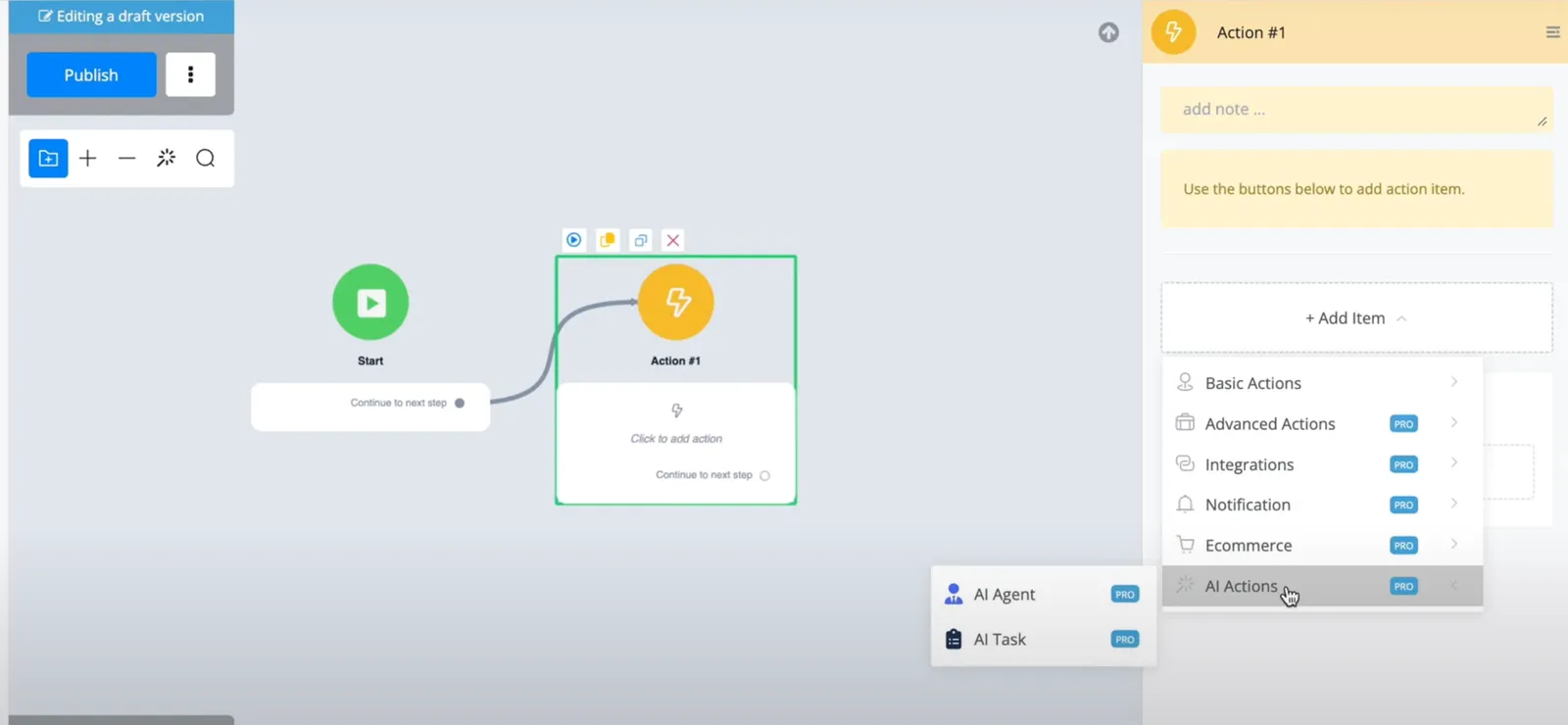
- Open the flow in the Flow Builder and add an Action step.
- Choose AI Actions and then AI Agent.
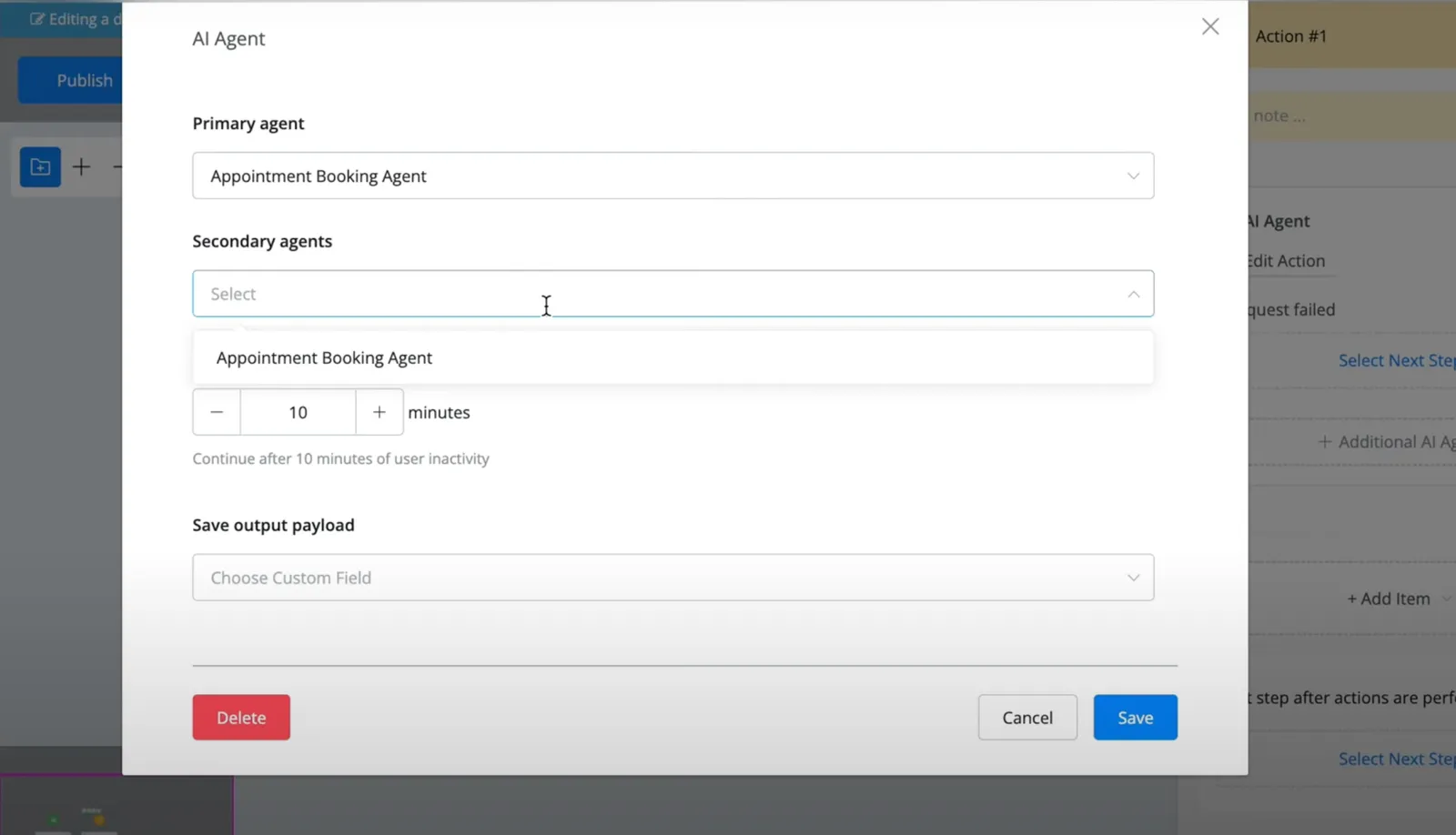
- Select the Primary agent, the one that answers first.
- Optionally, add Secondary agents. The primary agent can then use their functions, and keeps its own persona and model settings.
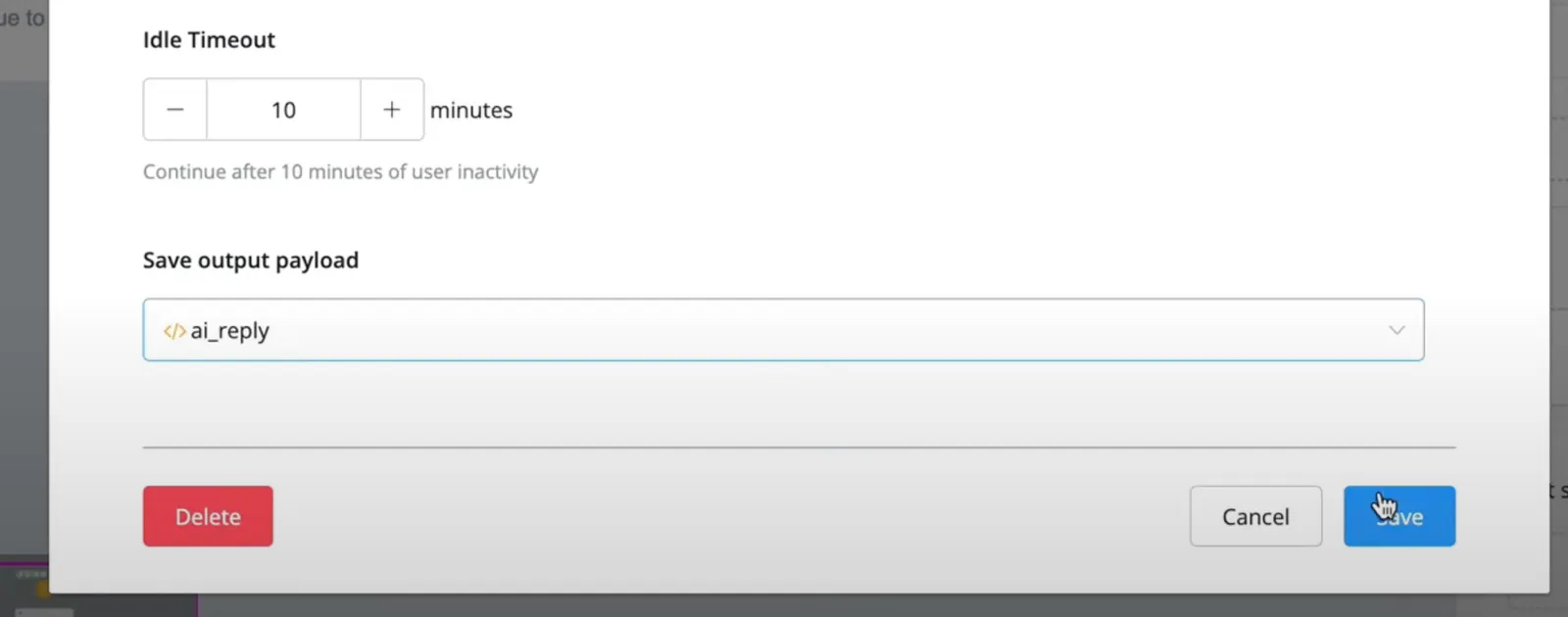
- Set the Idle Timeout: if the user stops replying for that many minutes, the flow leaves the agent and continues to the next step. You can use it to send a follow-up.
- Optionally, pick a field in Save output payload to store the agent’s output. This is useful for debugging. The agent’s replies are sent to the user either way.
Example prompt: appointment booking
An agent that captures the user’s details, looks up available time slots and books the appointment. The functions that save the details and fetch the slots are covered in AI Functions.
Persona & Role
You are the Appointment Booking Agent. You schedule appointments with users.
Capture their first name, last name and email, fetch the available time slots,
let them choose one and confirm the booking. Be professional and friendly.
Skills
## Skill 1: Capture user details
- Ask for the first name, last name and email, one at a time.
- Only ask for details that are empty or unknown.
- Check the email format before moving on.

## Skill 2: Show available time slots
- Once the details are saved, fetch the available time slots.
- Show the available dates first, then the times for the chosen date.
- If there are no slots, say so and offer another date.

## Skill 3: Book the appointment
- Summarize the date, time, name and email and ask the user to confirm.
- After they confirm, save the chosen date and time and book it.
Constraints
- Ask for one detail at a time.
- If an input is invalid, explain what is wrong and ask again.
- If the user wants to cancel, end the booking politely.
- Only talk about booking appointments.
Tips
- Write a detailed description and review what Generate Agent Prompt produces. The prompt is what the agent follows.
- Say in Skills when the agent has to call each function. A function that never gets called usually means the prompt doesn’t say when to use it.
- Keep Constraints short and concrete.
- Test the agent yourself before sending the flow to users.
Troubleshooting
- AI Messages: every conversation with an agent is saved in the AI Messages system field of the bot user. Open the user’s profile to see what the user said, what the agent answered and which functions it called with which values.
- Live Chat: with system messages visible, the conversation shows which agent is active and when a function runs. Hover over a function to see its inputs and outputs.
- AI Usage Logs: lists every AI call with its model, tokens, processing time and status. See AI Usage Logs.