
An AI Task is a single job you give to the AI inside a flow: summarize a conversation, classify a lead, extract a piece of information from a longer text or write a follow-up message. Unlike an AI Agent, it doesn’t hold a conversation with the user. It takes an input, runs the prompt and returns a result you can save in a field.
Each bot can have up to 50 AI Tasks.
Create an AI Task
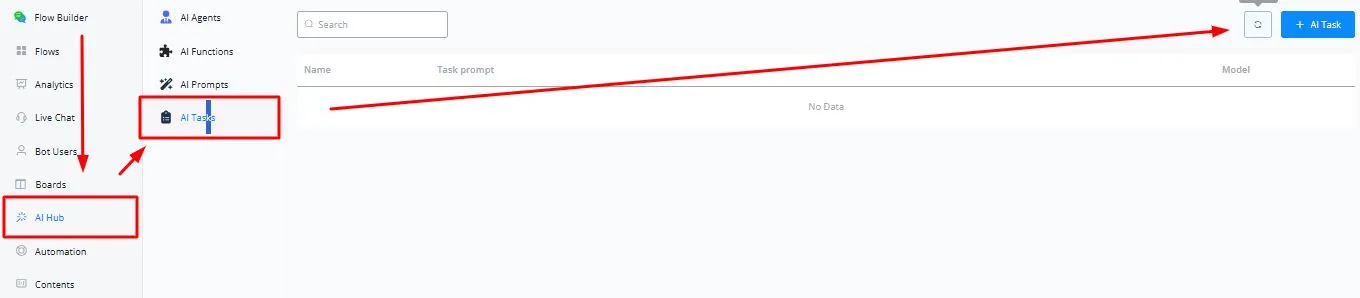
- In your bot, go to AI Hub → AI Tasks and click + AI Task.
- Give it a name and write the task prompt: what the AI has to do with the input. You can start from one of the presets to see how a prompt is written.
- In the settings, choose the model and adjust parameters like temperature and max tokens.
- If the task returns a value, like a piece of information extracted from the text, set the output field where the result is saved.
- Save the AI Task.
Example of a task prompt: “Create an engaging follow-up message for a user who became inactive. Analyze the chat history, find where the user left the conversation and write the follow-up message based on that.”
Use an AI Task in a flow
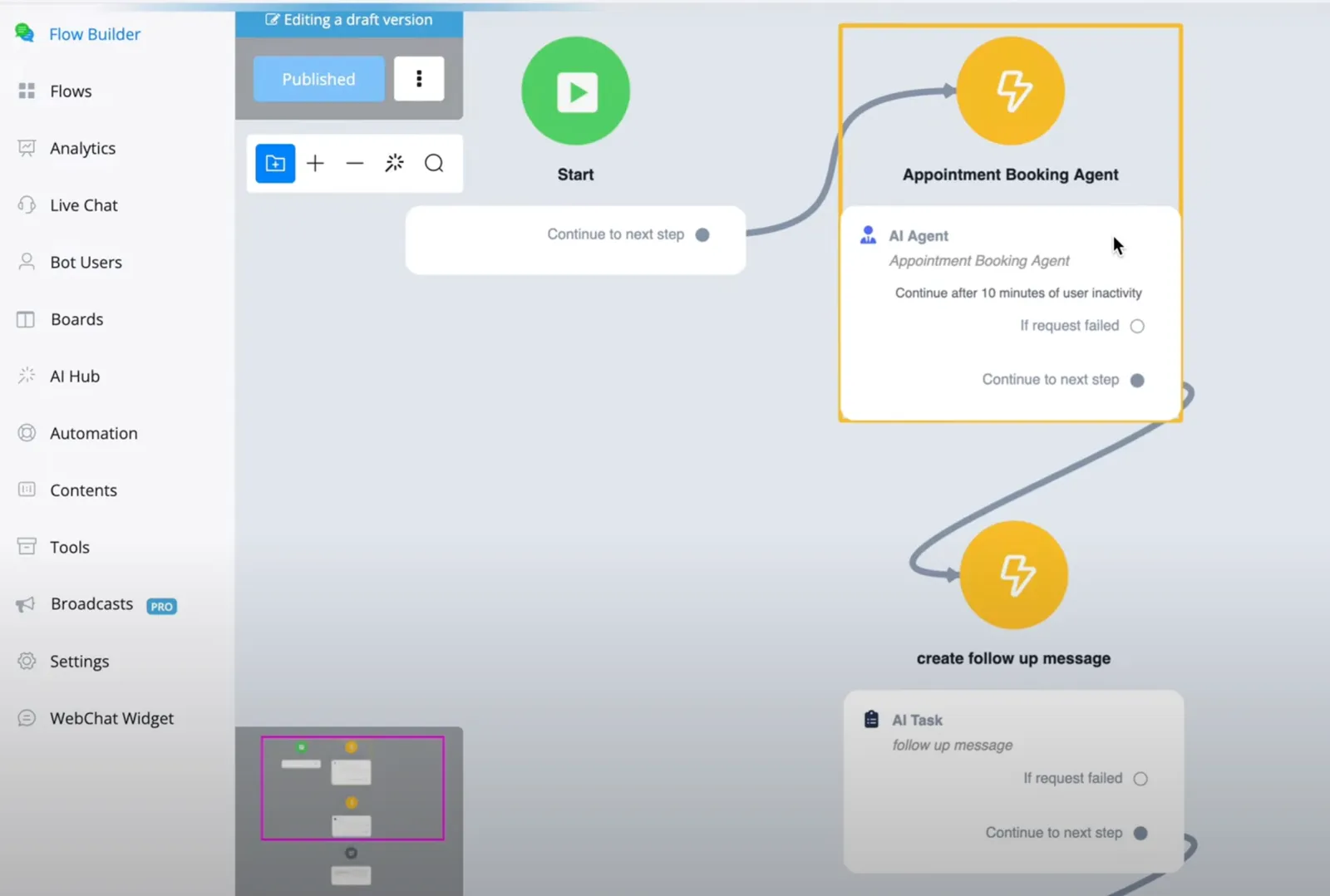
- In the Flow Builder, add an action step and click AI Actions.
- Choose AI Task and select the task you want to run.
- In the input field, enter the content the task works on, for example the chat history or a field value.
- Map the result to a user field so you can use it later in the flow or in other flows.
Example: follow up with inactive users
A common use is to bring back users who stopped answering in the middle of a process. Say a user gave their first name but never finished booking an appointment:
- The AI Task reads the chat history and writes a message that picks up where the user left off, reminding them to share their last name and email to finish the booking.
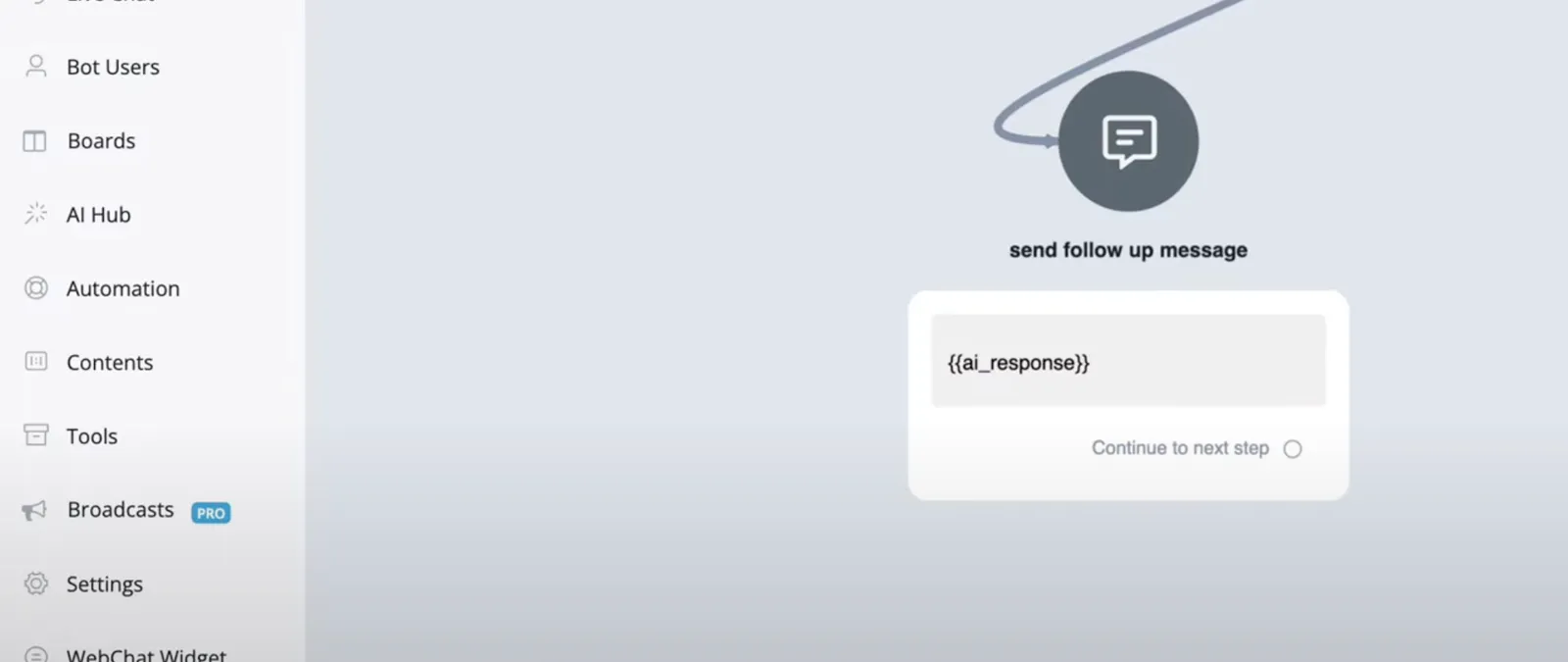
- The result is saved in a user field.
- A Send Message step sends that field to the user.
AI Tasks that run inside a flow also appear in AI Hub → AI Usage Logs, where you can check the model, the tokens used and whether the call succeeded. See Usage logs and settings.