
Custom events let you count things that happen inside your automations, like a sale, a booking or a completed form, and see them later in the reports.
Create an event
Go to Contents → Custom Events and click + Event. Each bot can have up to 100 events.
Fill in:
- Name: what the event tracks, for example “Sale made”.
- Description: what the event is for.
- Parameters: up to three values that travel with each event. Text Parameter is for a text, like the product or the category. Price Parameter is for an amount. Number Parameter is for a quantity. You don’t have to fill in all three, but you need at least one.
For example, an event “Sale made” can use Text Parameter for the product, Price Parameter for the price and Number Parameter for the quantity.
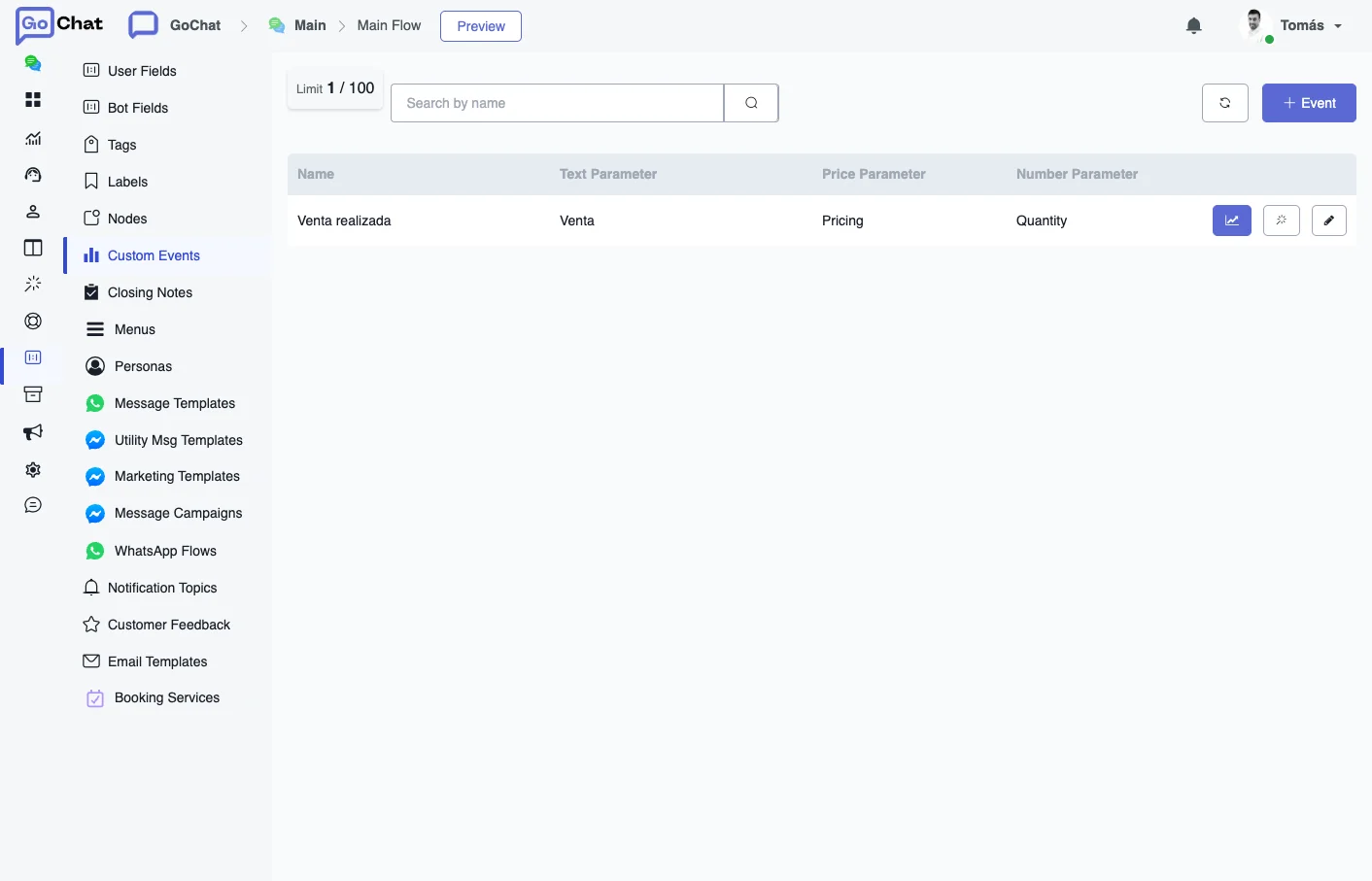
Each row has icons to open the event report and to edit the event.
Track the event in a flow
- In the Flow Builder, add an Action step and choose the Custom Event action.
- Click Edit action, choose the event and fill in the parameters with fixed values or fields.
Every time a user goes through that step, the event adds one count with the values of that moment.
See the results
Open Analytics → Custom Events and click an event to see its data. You can also combine events in Tools → Custom Reports. See Operations.