
These tools help your team keep the inbox under control: which chats need an answer, which ones can wait and what happened in each one.
Sort the list
At the top of the conversation list there is a sort menu. Click an option to sort by it, and click again to switch between oldest first and newest first.
- Last Message: the last message sent by an agent or by the bot.
- Created At: when the conversation was created.
- Last Interaction: the last time the user interacted.
- Subscribed At: when the user subscribed.
Move a conversation to Done
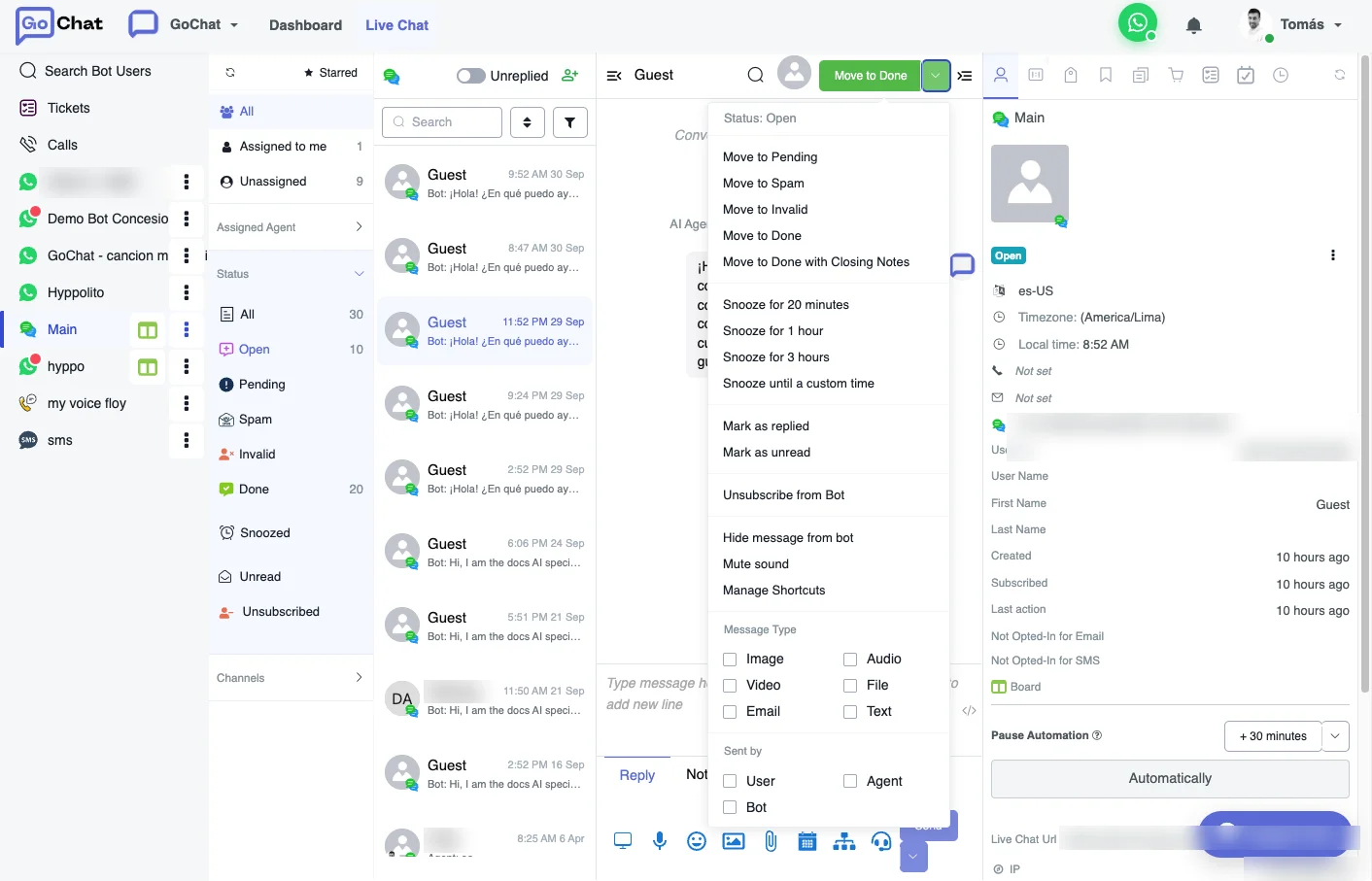
When a conversation is finished, click the tick icon in the upper-right corner to move it to Done.
By default, if a user in Done writes again, the conversation goes back to Open. You can change that in the Flow Builder: go to Settings → Live Chat, find Live Chat Features and click Save after you change the option.
- Enabled: every new message from the user opens the conversation again.
- Disabled: the conversation stays in Done until an agent or an automation moves it.
With the option disabled you can still build a flow that moves conversations back to Open only under the conditions you choose.
Closing notes
Closing notes ask the agent for a short reason every time a conversation is moved to Done, so you know how each case ended.
- In the bot, go to Contents → Closing Notes and click + New Category to create the categories you need. Click Save.
- Go to Settings → Live Chat and turn on closing notes. Click Save.
From then on, the agent chooses a closing note when moving a conversation to Done. You see it in the bot user overview, you can use it as a trigger for automations, filter users by it in a condition step and see it in Analytics.
Snooze a conversation
Snooze takes a conversation out of your queue and brings it back later. It is useful when you are waiting for the customer, a delivery or an approval. You can snooze Open and Pending conversations.
- Open the conversation.
- Open the conversation actions menu.
- Choose 20 minutes, 1 hour, 3 hours or a custom time.
The conversation leaves Open or Pending and shows up in Snoozed. It is still listed in All. An alarm-clock icon marks it: hover over it in the list, or click it in the conversation header, to see when it comes back. From the header you can also Reschedule it or Unsnooze it right away.
The conversation goes back to Open when any of these happens:
- The snooze time is reached.
- The customer sends a new message.
- An agent replies.
- An agent clicks Unsnooze.
If you move a snoozed conversation to another status, like Done, the snooze is cancelled and the conversation keeps the new status.
Snooze does not pause the bot. Pausing the automation controls whether the bot answers, snooze only manages your follow-up queue. In flows you can start a sub-flow when a conversation is snoozed, unsnoozed or reaches the end of its snooze, and use the Conversation is Snoozed condition.
Star important messages
Star a message to find it again later, like a customer request or an answer you will need.
- Open the message options.
- Click Star message. To undo it, click Unstar message.
Open Starred Messages in Live Chat to see all of them. Click one to go to that point of the conversation. Your stars are private: other agents do not see them, and the customer is not notified.
Search inside a conversation
You can search the text messages of a conversation. Next to the search bar, the Sent by filter narrows the results to User & Agent, User, Agent, Bot or Note.
The search covers the last 6 months of messages.
Labels
Labels work like tags, but they are shared by all the bots of the same workspace. You find them in Contents → Labels, add or remove them in a flow with Action → Basic Actions, and see them in Live Chat.