
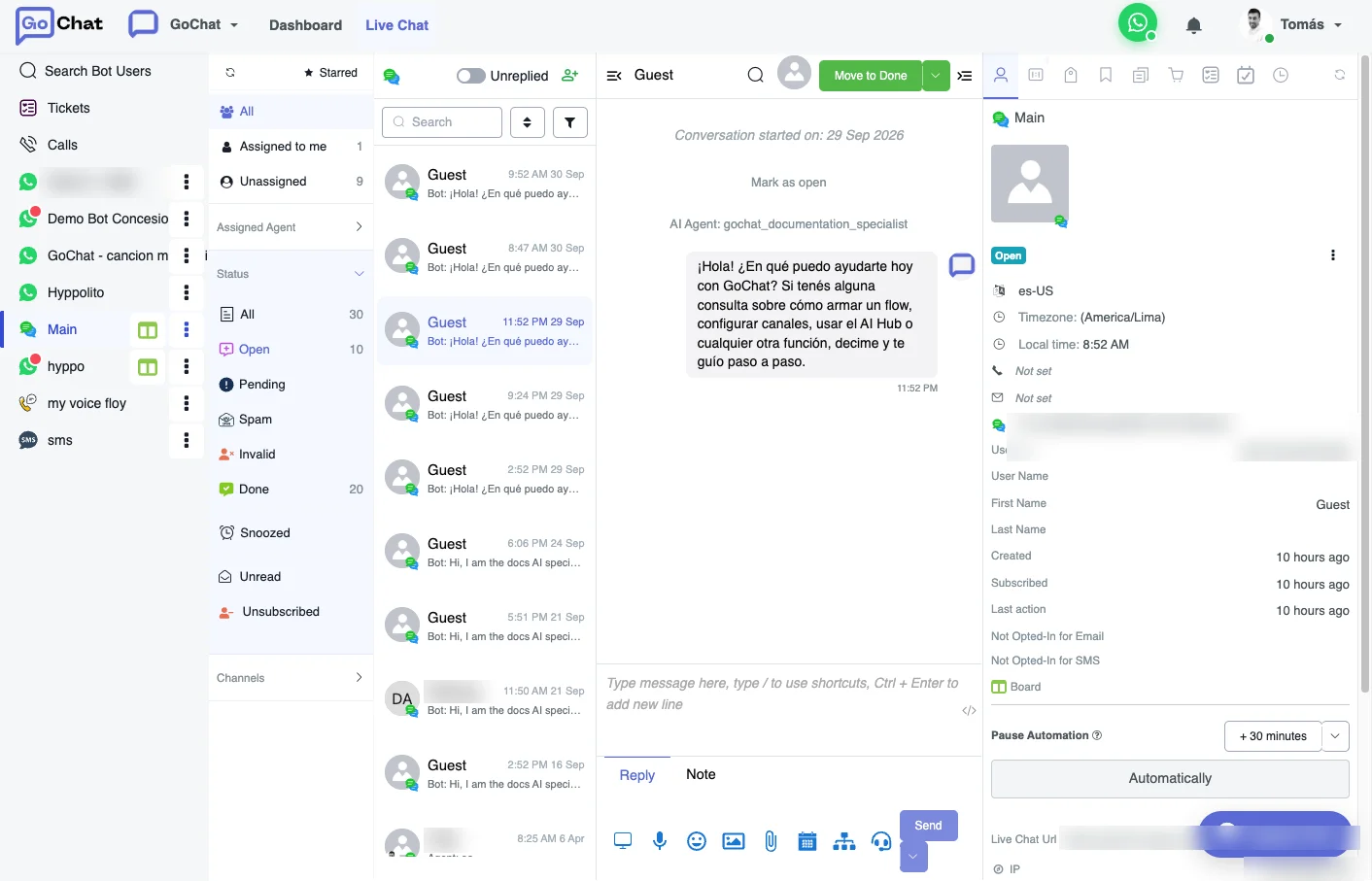
The right side of Live Chat shows everything you know about the user, split into sections so you don’t have to scroll through long lists.
Profile sections
Click a section to switch to it:
- Profile Data
- Custom User Fields
- Notes
- Tags
- Subscribed Sequences
- Notification Topics
- Shop Orders
You can add or remove tags right there, which helps to move users into a funnel. User fields can be viewed, edited or deleted. Sequences and notification topics can only be removed from the user.
Merge two users
When the same person shows up as two bot users, you can merge them into one. The chat history, fields and the rest of the data end up in a single profile.
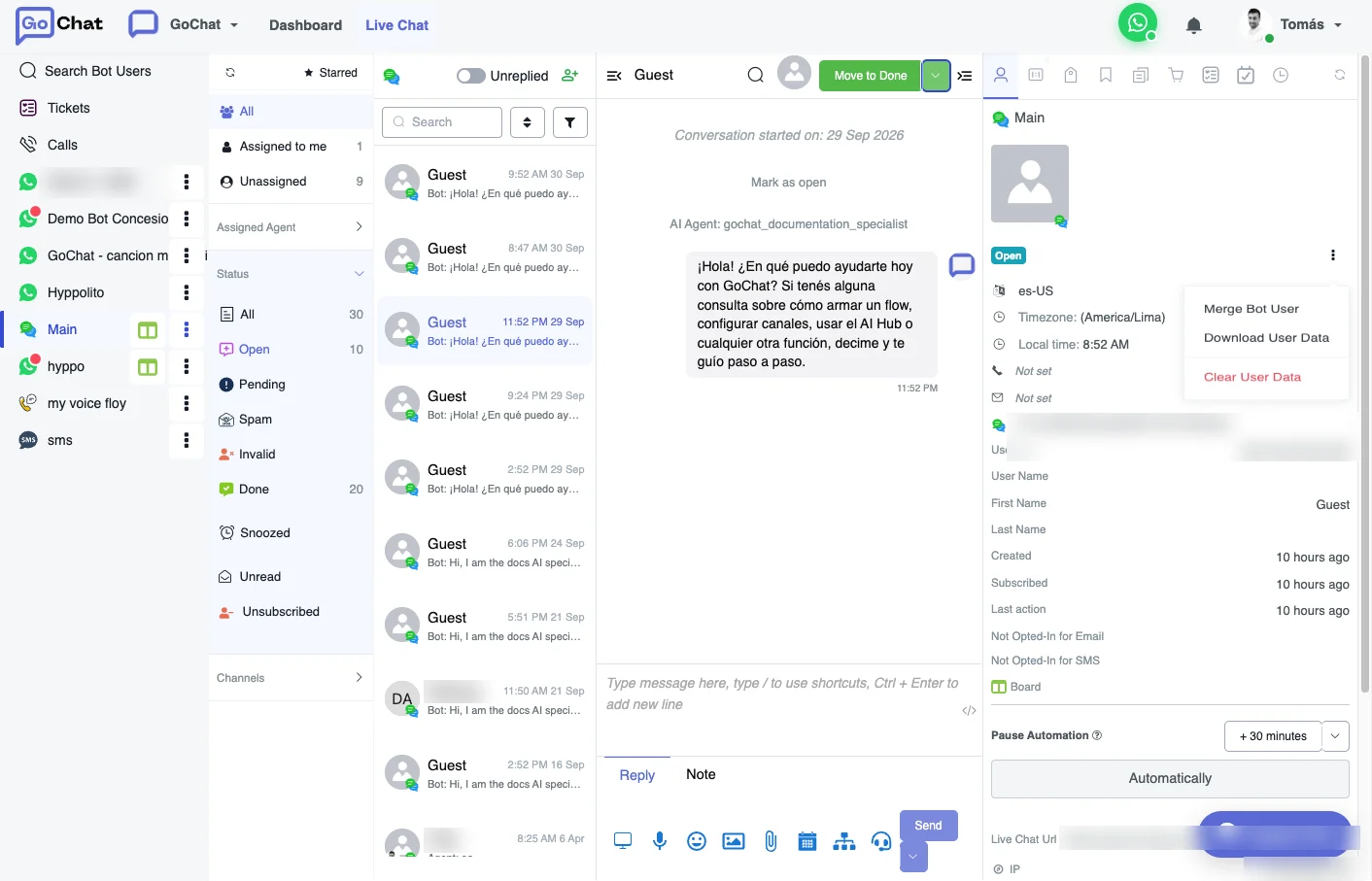
- In Live Chat, open the conversation of the user you want to keep and click their name to open the profile.
- In the 3-dots menu at the top right of the profile, click Merge Bot User.
- The user you opened is the Primary User. In Secondary User, use Choose User to pick the duplicate.
- Choose whether to delete or keep the secondary user after the merge. Review the data of both users.
- Click Merge and then Confirm.
Merge duplicates automatically
You can also merge from a flow, for example when two users share the same email or phone number:
- Add an action step with Bot User API to search for the duplicate.
- Add a condition step that compares the data, like email or phone.
- Add another action step with Bot User API and choose Merge Bot User. Fill in Secondary Bot User Ns with the duplicate and choose whether to Delete after merged.
- Publish the flow and start it with the trigger you prefer.