
Members are the people who have access to the workspace, each with their own GoChat account. In Workspace Settings → Members you see who they are and which role each one has.
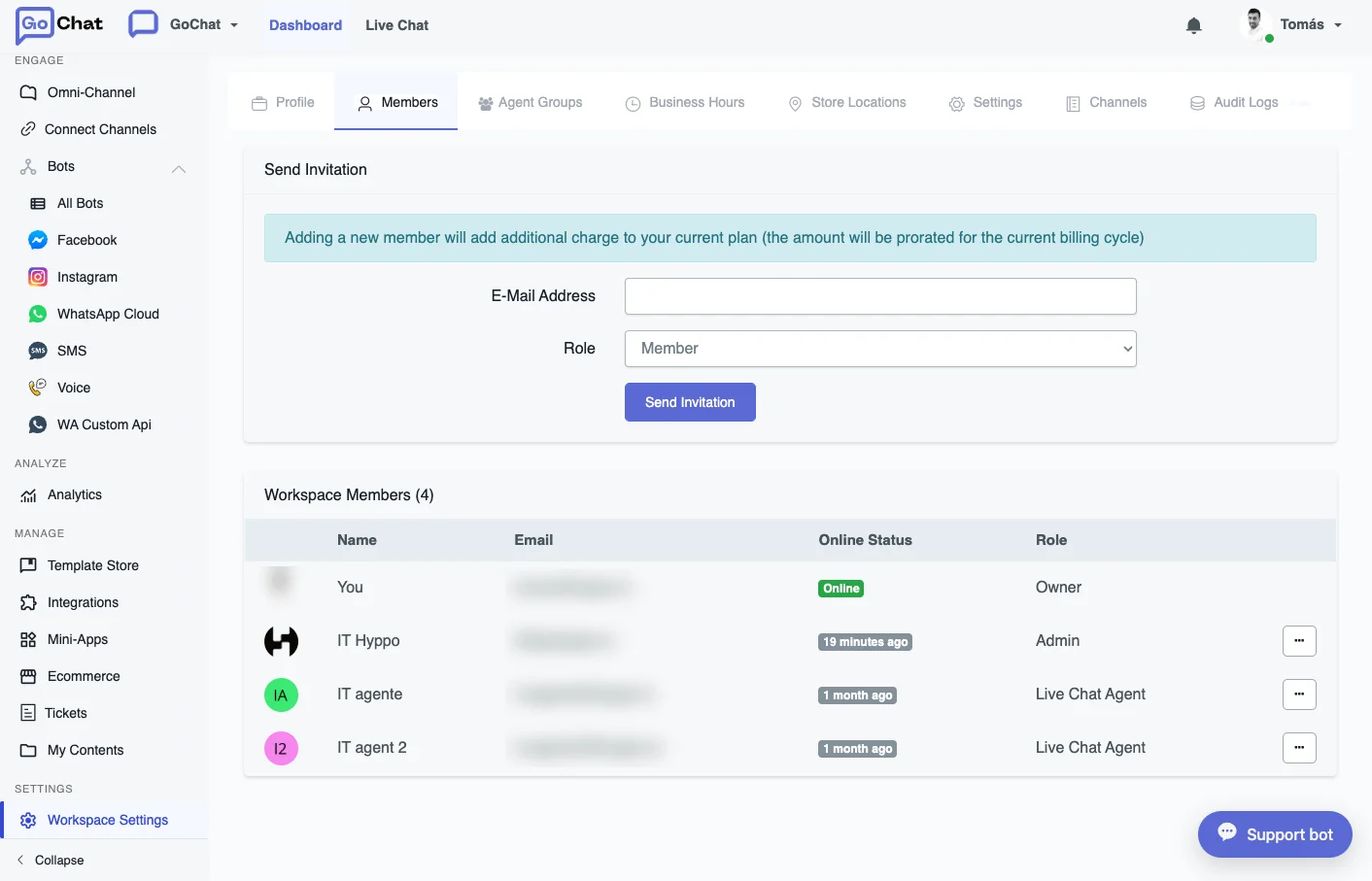
These members are not the same as the admins of a bot. Bot admins are subscribers of your chatbot who get special menus inside the chat, and they are managed from Admins.
Roles
There are five roles. The person who creates the workspace becomes its only owner.
| Role | What they can do |
|---|---|
| Live Chat Agent | Access only Live Chat. |
| Live Chat Supervisor | Access only Live Chat, and manage the conversations of every Live Chat agent. |
| Member | View and edit all flows, and view analytics. |
| Admin | Everything a member can do, plus manage channel connections (add numbers, agents, connect pages), integrations, the ecommerce system, templates and mini-apps. |
| Owner | Everything an admin can do, plus manage the workspace profile, the members (invite, delete, change roles) and the subscription and payment. |
Billing and add-ons are covered in Account Setup.
Invite a member
Only the owner can invite members, remove them or change their role.
- Go to Workspace Settings → Members.
- Enter the email address of the person you want to invite and choose their role.
- Send the invitation.
What happens next depends on whether that person already has a GoChat account:
- They already use GoChat: they accept the invitation from the notification center, the bell icon in the upper right corner.
- They don’t have an account yet: the invitation email includes a link to set a password. After that, they log into the workspace with their own details.
Change a member’s role
You choose the role when you send the invitation, and you can change it later. On the Members page, click the gear icon next to the member and pick the new role.
Permissions for each member
On top of the role, you can decide which sections of the workspace each member can open, for example Bots, Analytics, Integrations, Bot - Broadcasts or Bot - Settings. This is useful when a role gives more access than a person needs.
These are the permissions you can grant:
- Navbar - Create Workspace
- Nav bar - Live Chat
- Upload Files
- Omni- Channel
- Agent Group Chat
- Bots
- Analytics
- Template Store
- Integrations
- Mini-Apps
- Ecommerce
- My Content - My Mini-Apps
- My Content - My Bot Templates
- My Content - Email Templates
- Workspace Settings
- Custom Menus
- Whitelabel Settings
- Bot - Flows
- Bot - Analytics
- Bot - Live Chat
- Bot - Bot Users
- Bot - Boards
- Bot - Contents
- Bot - Tools
- Bot - Broadcasts
- Bot - Settings
- Bot - WebChat Widget