
MCP (Model Context Protocol) lets the AI connect to external tools without building API requests by hand. You add the server once and the AI can query it in natural language: look up an order, check a customer in your CRM, read billing data.
You can connect any MCP server, including one you host yourself. Many platforms already offer one, like Shopify, Stripe, Intercom or HubSpot.
Where to find them
Open any bot and go to AI Hub → MCP Servers in the left-hand menu.
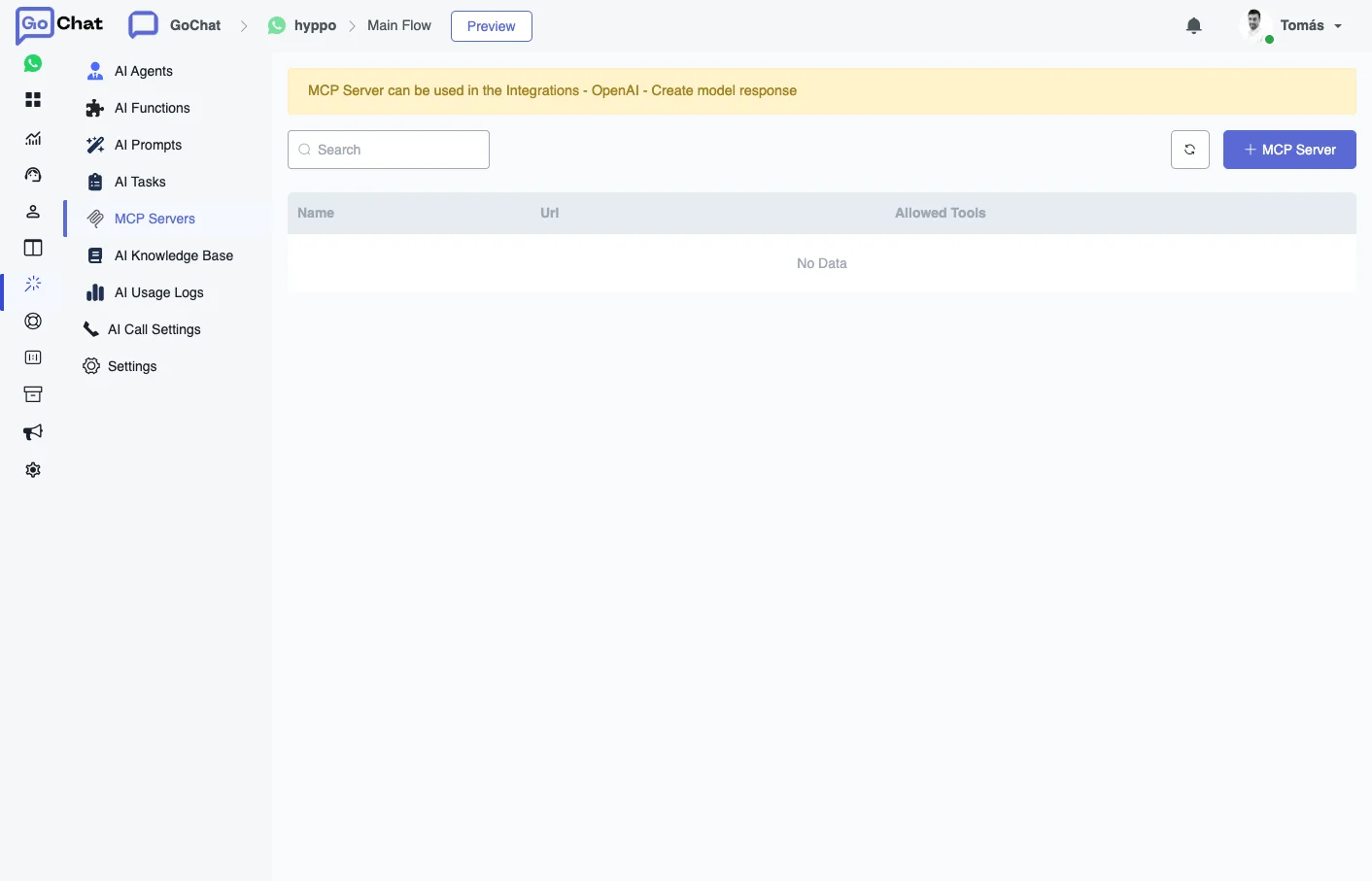
Add a server
Every server follows the same steps:
- Click the button to add a server.
- Enter a name and the server URL.
- Add the authentication details, if the server needs them.
- Select the tools the AI can use.
- Save.
Example: Shopify
- In the OpenAI Playground, go to Tools → Add MCP Server and choose Shopify.
- Enter your store URL. OpenAI generates the MCP server URL and shows the required authentication and the available tools.
- Copy the URL and add the server in GoChat with the steps above.
Use it in an AI Agent
In the agent, go to Settings → Model and choose OpenAI - Responses or xAI - Responses. Then open Tools (OpenAI - Responses, xAI - Responses) and select the servers in MCP Servers.
The agent calls those servers on its own when it needs them. You don’t need a separate AI Function or action for that. See AI Agents for the rest of the agent settings.
Use it in a flow
- In the Flow Builder, add an action step and go to Integrations → OpenAI.
- Choose Create Model Response.
- Set the model to gpt-4.1-mini. It works better with MCP tools than gpt-4o-mini or gpt-4o.
- Select the MCP servers and set the tokens and the temperature.
- Test the step. The sample response returns a list of data: find the path that holds the result you need and save it to a field.