
A template message is a WhatsApp message approved by Meta before you can send it. It is how you start a conversation, or pick it up again, when the user has not written to you in the last 24 hours.
When you need a template
WhatsApp gives you a 24-hour customer service window. It opens every time the user sends a message to your number and it lasts until 24 hours after their last message.
- Inside the window you can send any regular message: text, text with buttons, images, audio, files and cards.
- Outside the window you can only send an approved template. Use it for notifications, reminders, or to restart a conversation.
Templates can have variables in double curly braces, like {{1}}, that are replaced with each user’s data when the message is sent.
Meta charges WhatsApp conversations by the user’s country. The rates are in Meta’s pricing documentation.
Create a template in GoChat
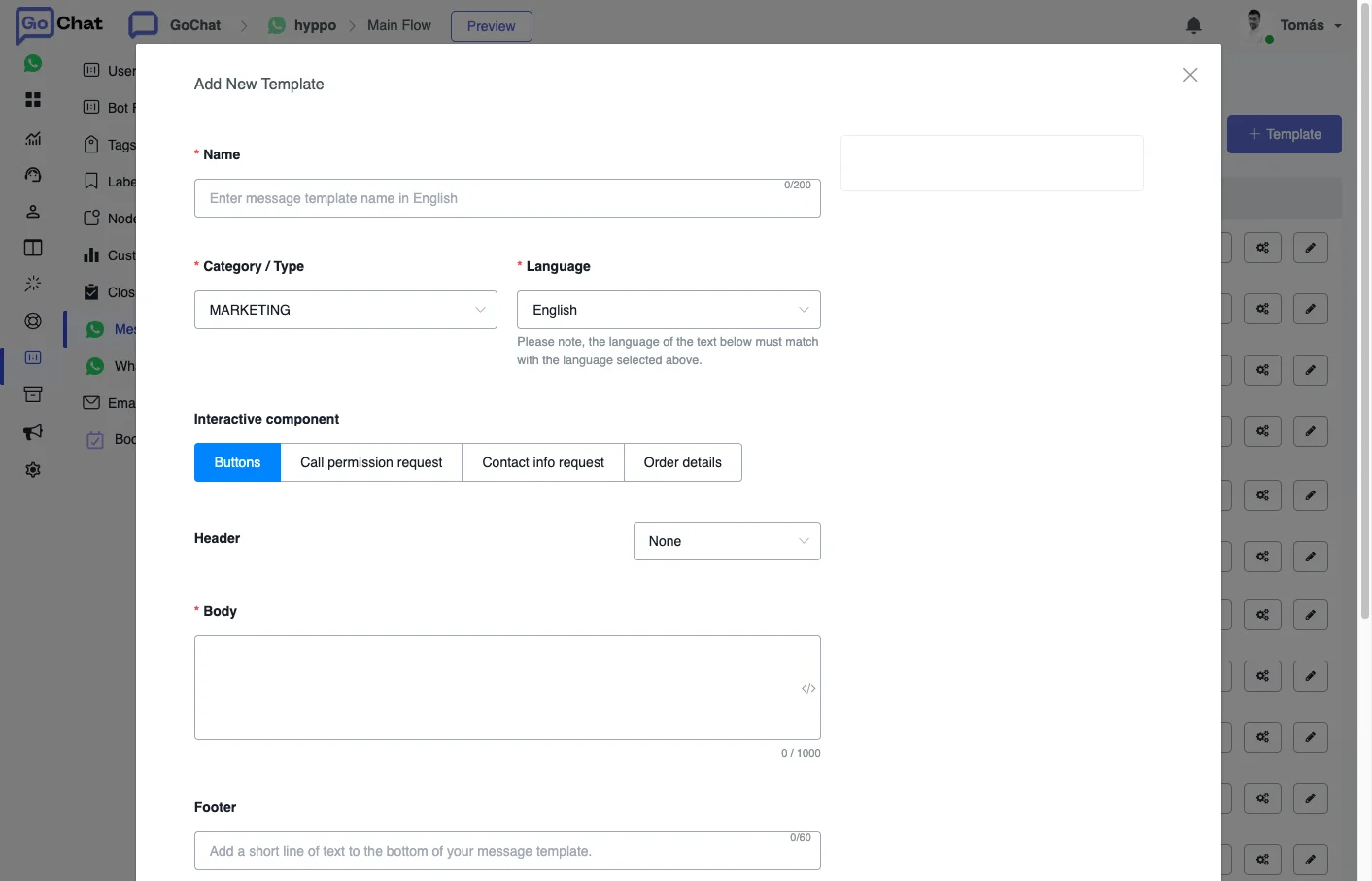
- Go to Content → Message Templates and click New Template.
- Give it a clear name.
order_shippedtells the reviewer more thantemplate_014. - Choose the category:
- Marketing: promotions or information about your products, services or business.
- Authentication: codes to verify a login or a transaction.
- Utility: messages about an existing order or account.
- Carousel: one text message with up to 10 carousel cards.
- Limited-Time Offer: an offer code with an expiration date and a countdown.
- Write the content. A template is made of these parts:
- Header (optional): text, image, document or video.
- Body (required): the main text. Only text.
- Footer (optional): short secondary text.
- Buttons (optional): up to 10 reply buttons, plus links and phone numbers.
- Submit it for review. Once Meta approves it, it is ready to use.
Templates created in WhatsApp Manager
You can also create templates in Meta’s WhatsApp Manager. When they are approved, go to Content → Message Templates in GoChat and click Sync WhatsApp Template to bring them in.
Edit a template
You can edit a template after it is created. The change goes to review again from GoChat, and once it is approved it is updated in every flow that uses it.
Tips to get approved
- Be clear. The reviewer does not know your business. Explain what the message is about.
- Avoid promotional wording in templates that are not Marketing. Upselling, cold messages or polls to collect data count as promotion.
- Check spelling and format, including the double curly braces of the variables.
- Give context. If the template reopens a conversation, mention the previous one.
- Choose the right category. It is one of the things Meta checks.
Default values
A default value fills a template variable automatically, so you do not have to type it every time you send the message. You can still change it when you send it.
Go to Message Templates, click the edit icon of the template and set the default values of its variables, like a custom field or a URL.
Find where a template is used
Click Check-in Use on a template to see every flow that uses it. You can filter by flow or by message type. It helps when you change a template and need to review the flows that send it.
Send a template from a flow
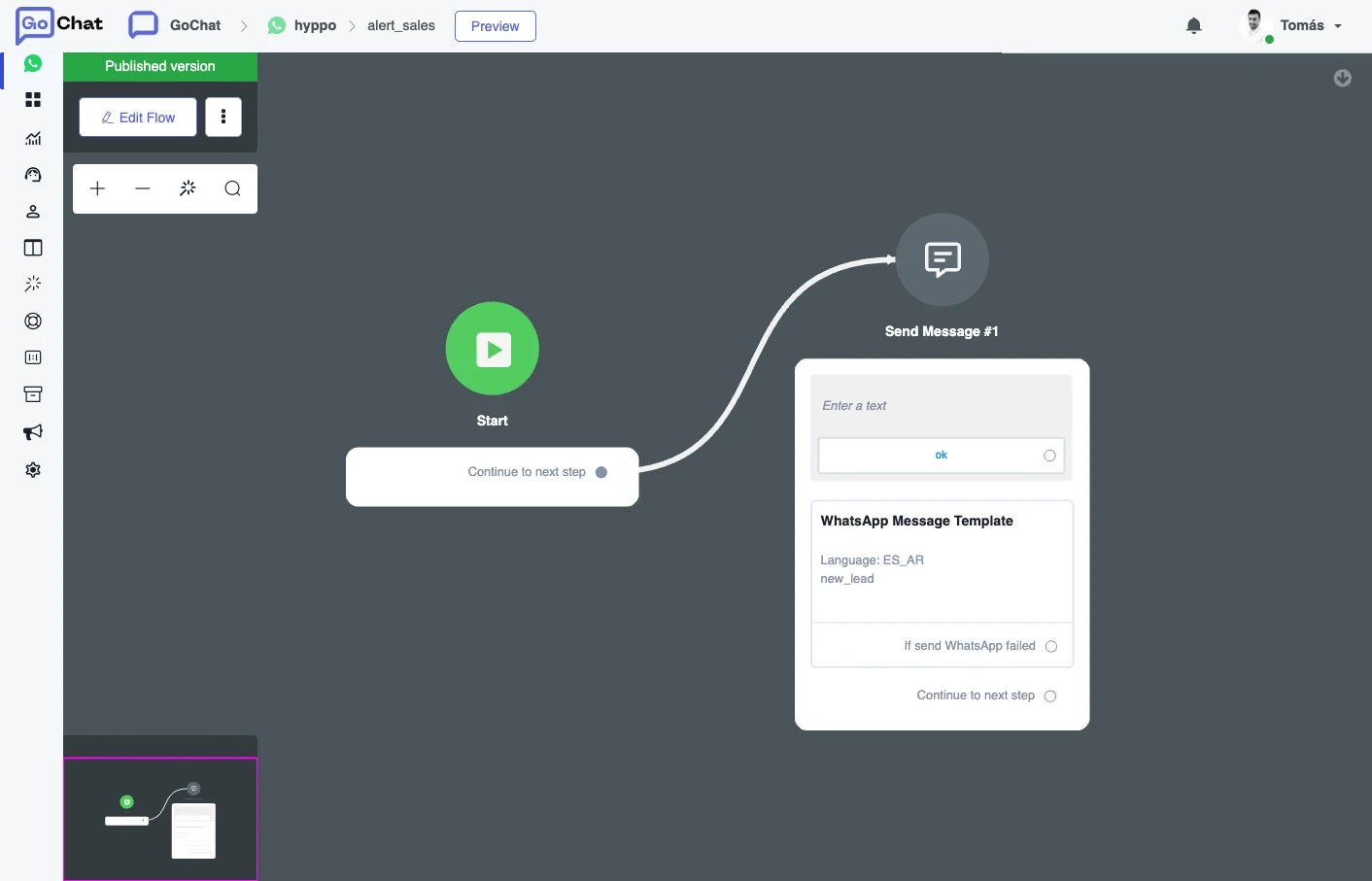
- In the flow builder, add a Send Message step.
- Under Other, choose Message Template and pick the template.
- If the template has variables, map each one to a custom field of GoChat, or keep the default values.
A template sent inside the 24-hour window does not open a paid conversation.
Send a template in a broadcast
A broadcast sends a sub-flow, so the template goes inside that sub-flow.
- Build a sub-flow that starts with a condition: is the user still inside the 24-hour window?
- If yes, send them a regular message. If no, send the template.
- In the broadcast, choose the audience and select that sub-flow.
See Broadcasts for the rest of the setup.
Send a template from Live Chat
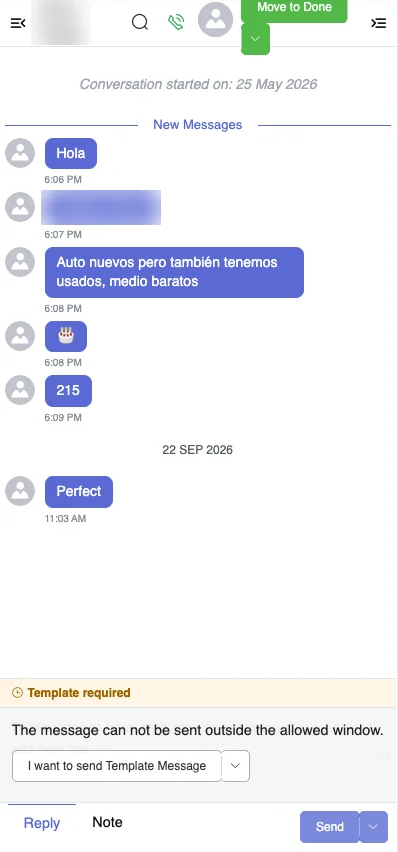
When the user is outside the 24-hour window, the agent can only reach them with a template. In the conversation, choose I want to send template message and pick a sub-flow that starts with the template. The template is only sent if it is the first message of that sub-flow.
The GoChat mobile app has the same option.
Titles and which templates agents can use
To help agents find the right template, give each one a Title in the Message Templates list. Live Chat shows that title instead of the template name.
To decide which templates agents can send, go to Settings → Live Chat → Live Chat Settings and turn on Set default to not allow sending in the chat for new WhatsApp Templates. New templates stay hidden from the chat until you allow them.
Example: login code with an Authentication template
- Create the template. In Content → Message Templates, click New Template, name it (for example OTP Login) and choose Authentication. A possible text: Your verification code is {{1}}. For your security, do not share this code. You can add a security disclaimer and the code expiry time. Submit it and wait for approval.
- Generate the code. In the flow, add an Action step with Set Variable Value. Choose the field
OTP_Code, the operation Generate Random Text and the format####for a 4-digit code. - Send it. Add a Send Message step with the template and map
{{1}}toOTP_Code. - Ask for it. Add a Question step, for example We sent you a code on WhatsApp. Paste it here., and save the answer in a field such as
Response. - Validate it. Add a Condition step that compares
OTP_CodewithResponse. If they match, continue the flow. If not, show an error message and offer a button to try again.
Test the whole flow before you publish it.