
A knowledge base holds your business information (product sheets, policies, price lists, FAQs) so AI Agents and flows can answer with your data instead of generic replies.
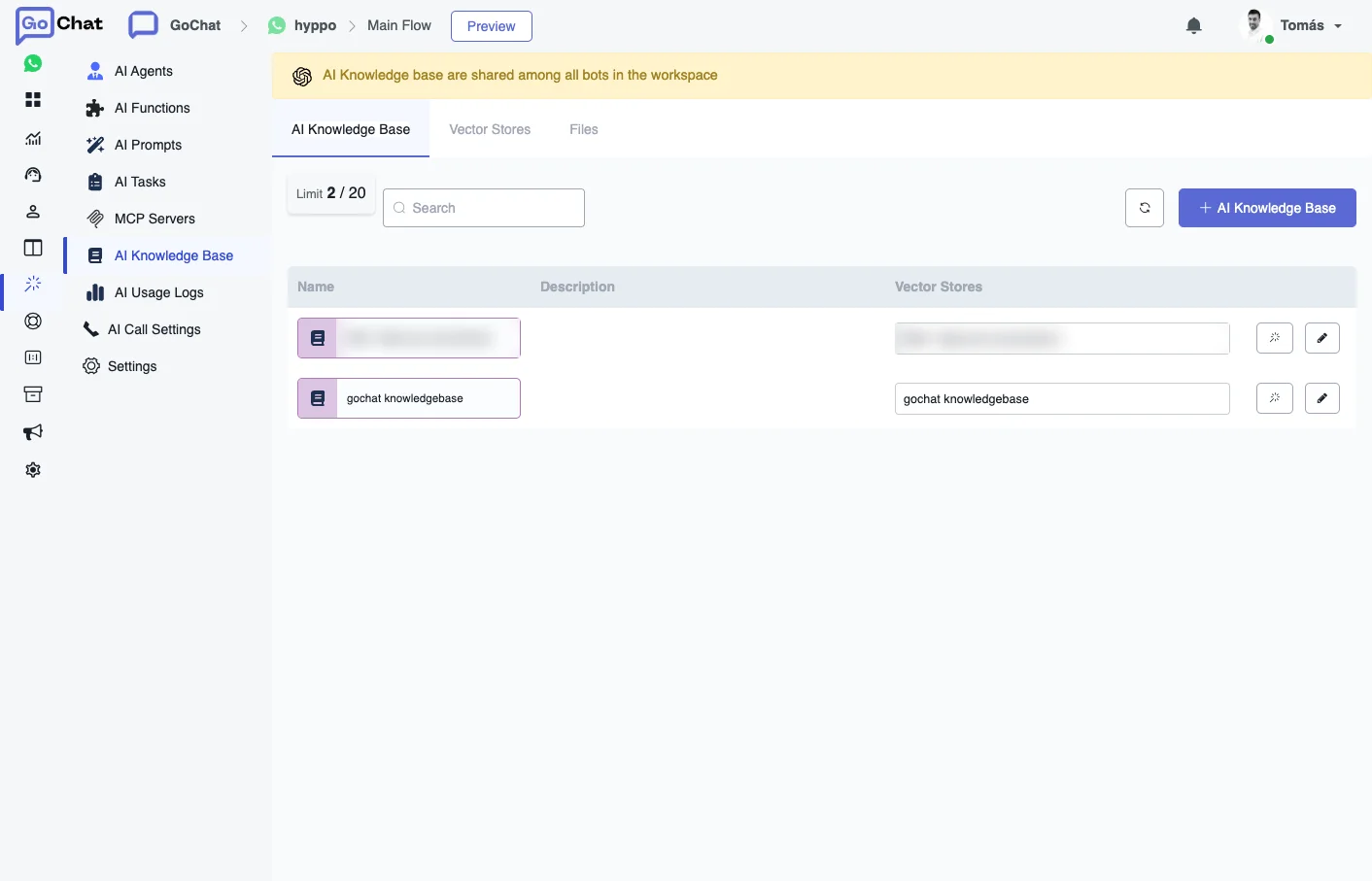
Knowledge bases are shared among all bots in the workspace. You create one once and use it in any bot, and when you update a file the change reaches every bot that uses it.
How it is organized
In AI Hub → AI Knowledge Base you will find three tabs:
- Files: the individual documents with your information.
- Vector Stores: containers that group related files.
- AI Knowledge Base: the knowledge bases themselves. Each one points to one or more vector stores, and this is what you select in an AI Agent or a flow.
A workspace can have up to 20 knowledge bases.
Before you start
Knowledge bases run on OpenAI, so the OpenAI integration has to be connected in your workspace: go to Integrations → Artificial Intelligence → OpenAI and add your API key.
Create a knowledge base
- Open any bot and go to AI Hub → AI Knowledge Base.
- In Files, upload your documents from your computer or by URL. Files need a valid extension, like
.pdf,.docor.xls. Files without one can’t be read and are rejected. - In Vector Stores, create a vector store. Give it a name (for example, “Business info”), set an expiration if you only need it for a while (0 means it never expires) and select the files it should include.
- In AI Knowledge Base, click +, enter a name and an optional description, select the vector store and save.
Use it in an AI Agent
The knowledge base works with the OpenAI - Responses provider only.
- Open the agent in AI Hub → AI Agents.
- In Settings → Model, choose OpenAI - Responses. If you don’t pick a model, it uses gpt-4.1.
- Open Tools (OpenAI - Responses, xAI - Responses) and select your knowledge base in AI Knowledge Base (OpenAI - Responses).
From then on, the agent looks up the files of that knowledge base whenever it needs information about your business. You don’t need an AI Function for that. See AI Agents for the rest of the agent settings.
Web Search
In the same Tools block you can turn on Web Search, so the agent can look up answers on the web. It helps when you don’t have a knowledge base or an MCP server with that information. It only works if the model supports it.
To limit the search to certain sites, list the domains separated by commas and without https://, for example google.com, app.google.com.
Not every model supports the same things:
- gpt-4.1 (the default): web search with domain restriction.
- gpt-4.1-mini and gpt-4.1-nano: web search, but without domain restriction.
GPT-5 models reason for longer, so they reply more slowly, time out more often and need more tokens (at least 2,000 per reply). Use them only for tasks that need that level of reasoning.
Use it in a flow
You can also query a knowledge base from the Flow Builder, without an agent:
- Add an action step and go to Integrations → OpenAI.
- Choose Search Knowledge Base.
- Fill in the settings:
- Model Response: the model that writes the answer.
- System Message: how the AI should answer based on your information.
- User Input: usually the user’s last text input.
- Knowledge Base: the knowledge base to search.
- Max Number of Results: how many results come back. The default is 2.
- Max Tokens: use at least 1,000 so the answer isn’t cut short.
- Remove Key Values: removes parameters from the response so it fits in a JSON field, which holds up to 20,000 characters.
Tips
- Keep related files in the same vector store and give everything a descriptive name.
- Check that your files finished processing, and use Sync to refresh the view after a change.
- Update the files when your information changes, and test the answers after each change.