
Shortcuts are pre-written replies that agents insert into a Live Chat conversation. They are useful for answers you send often, like a greeting, opening hours or payment details.
Each shortcut has two parts:
- Short name: what the agent types to find it, for example
/bienvenida. - Insertion value: the text that goes into the message box.
The value can include fields, like Agent Name in the example below. Fields show up highlighted in the list.
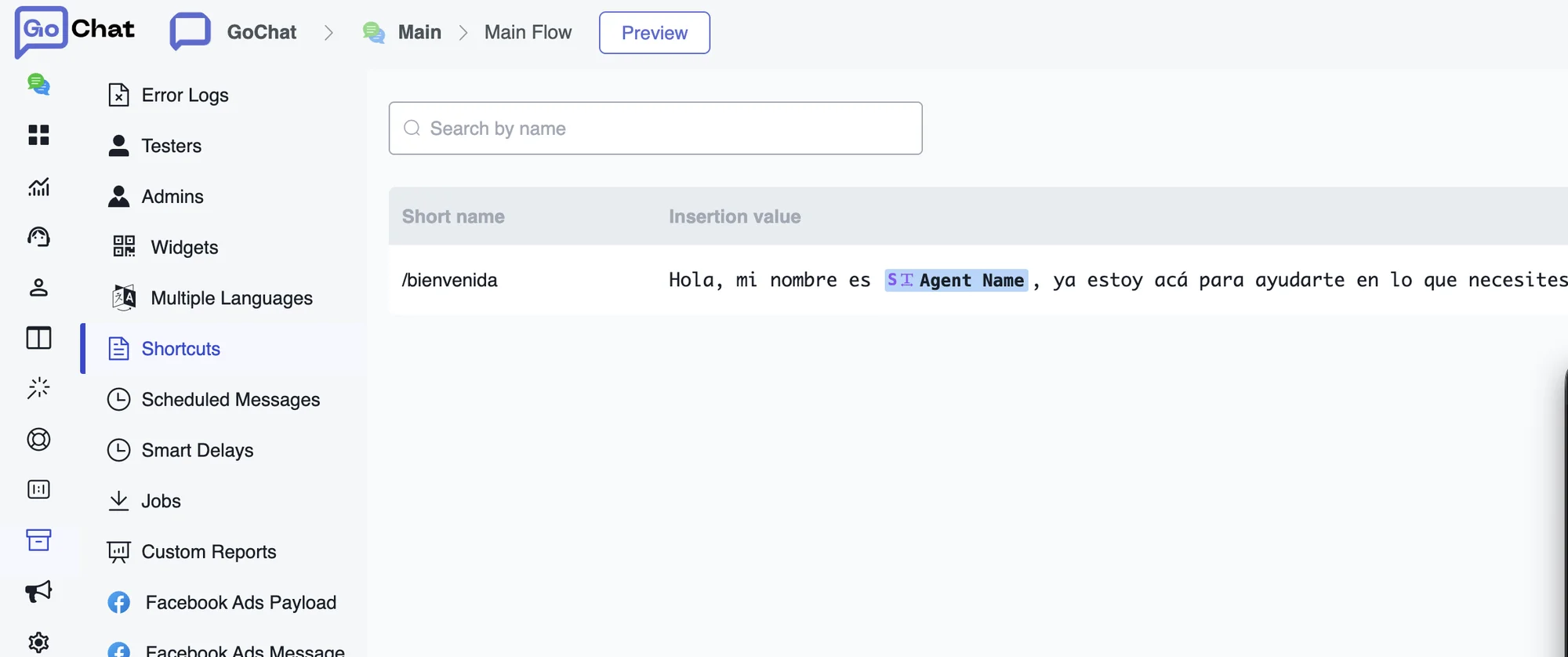
Manage your shortcuts
Go to Tools in the left-hand menu of your bot and open Shortcuts. You will see every shortcut of the bot, and you can find one with Search by name.
You can also get here from a Live Chat conversation: the 3-dots icon has a Manage Shortcuts option.
Create a shortcut
- In Shortcuts, click + Shortcut in the top right corner.
- Fill in Short name. The
/is already added in front, so type only the name. It can have up to 50 characters. - Write the text in Insertion value, up to 1000 characters. To add a field like Agent Name, click the
</>icon inside the text box and pick it from the list. - Click Save.
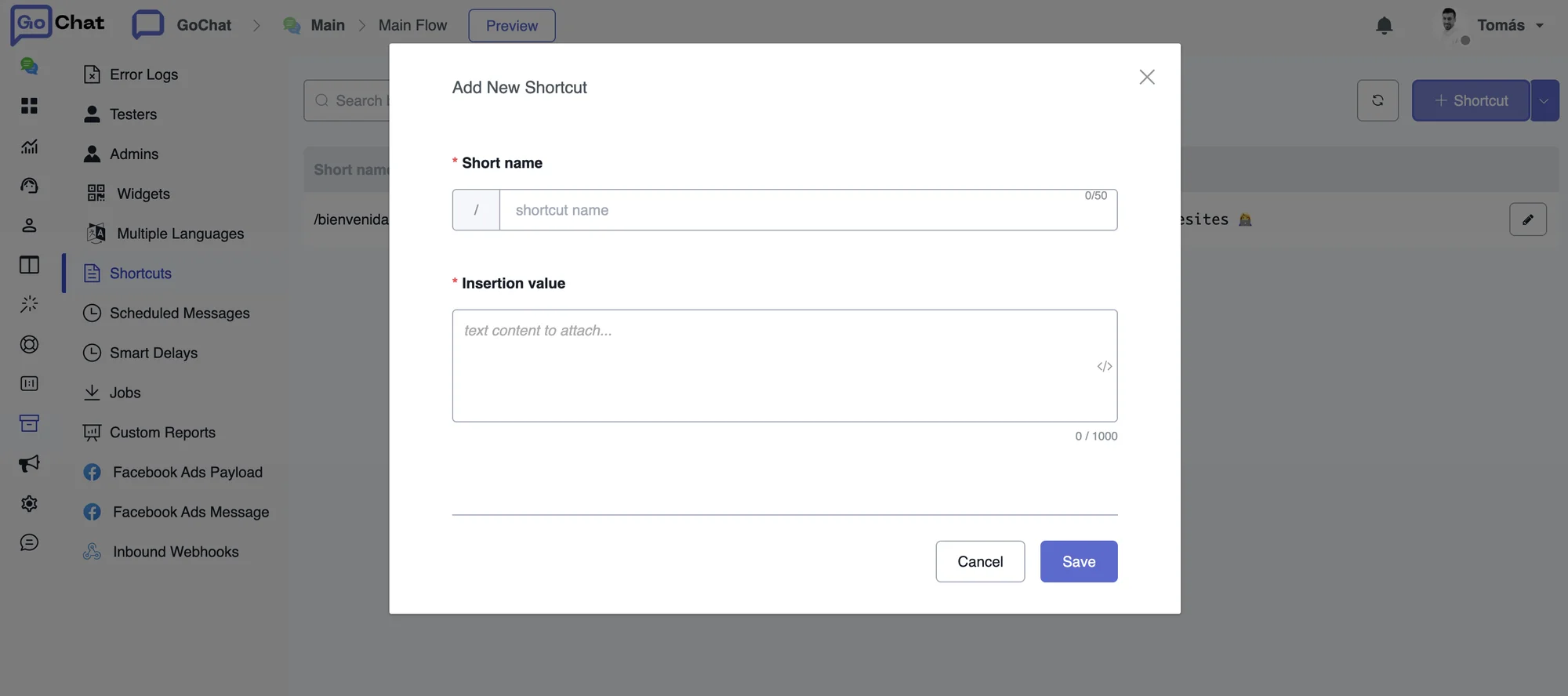
To change a shortcut later, click the pencil icon at the end of its row.
Import shortcuts from a CSV file
If you already have your replies written somewhere else, you can load them all at once instead of creating them one by one.
- In Shortcuts, click the dropdown arrow next to + Shortcut and choose Import.
- Prepare a CSV file with two columns. The first one holds the shortcut name and the second one the text. A spreadsheet like Google Sheets works fine: download it as CSV.
- Drag the CSV file onto the import section.
- Check the mapping: the name column goes to the Name field and the text column goes to the Value field.
- Click Confirm Import.
GoChat shows how many shortcuts were imported. They are available in Live Chat right away.
Use a shortcut in Live Chat
- Open a conversation in Live Chat.
- Type
/in the message box. The list of shortcuts appears. - Keep typing to filter by name, or move through the list with the up and down keys.
- Press Enter or click a shortcut. Its text is inserted into the message box.
- Edit the text if you need to and send it.
Manage shortcuts through the API
The API has endpoints to list, create and delete the shortcuts of a flow (/flow/shortcuts, /flow/create-shortcut and /flow/delete-shortcut). This helps when you keep the same replies in several bots. See API docs for how to authenticate.