
Live Chat is the inbox where your team talks to your bot users. Every channel has one, and agents can jump into any conversation the bot is running.
Open Live Chat
There are two ways in:
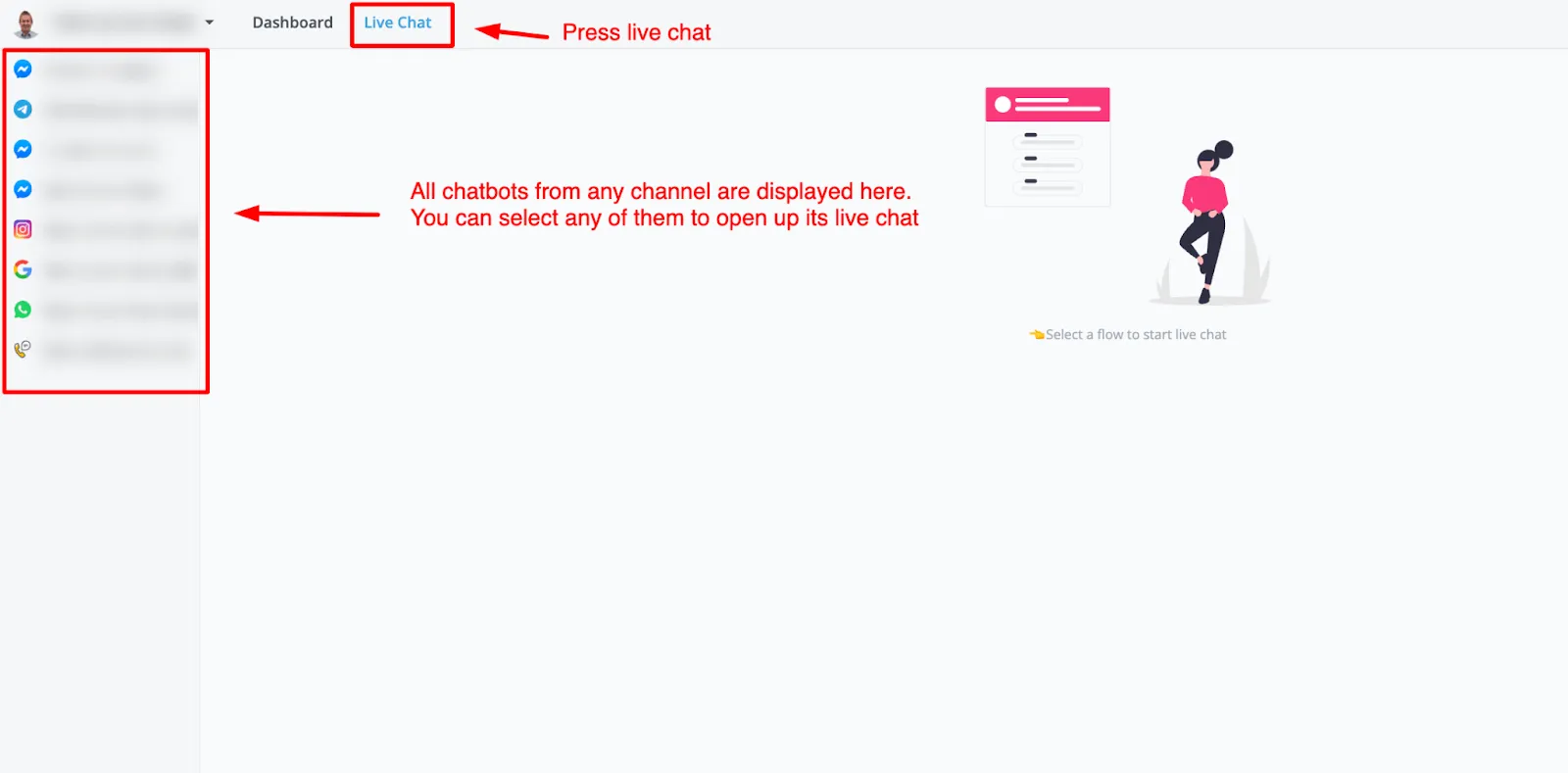
- From the main dashboard: click Live Chat in the top menu. You see the conversations of all your bots, and you pick the bot to work on.
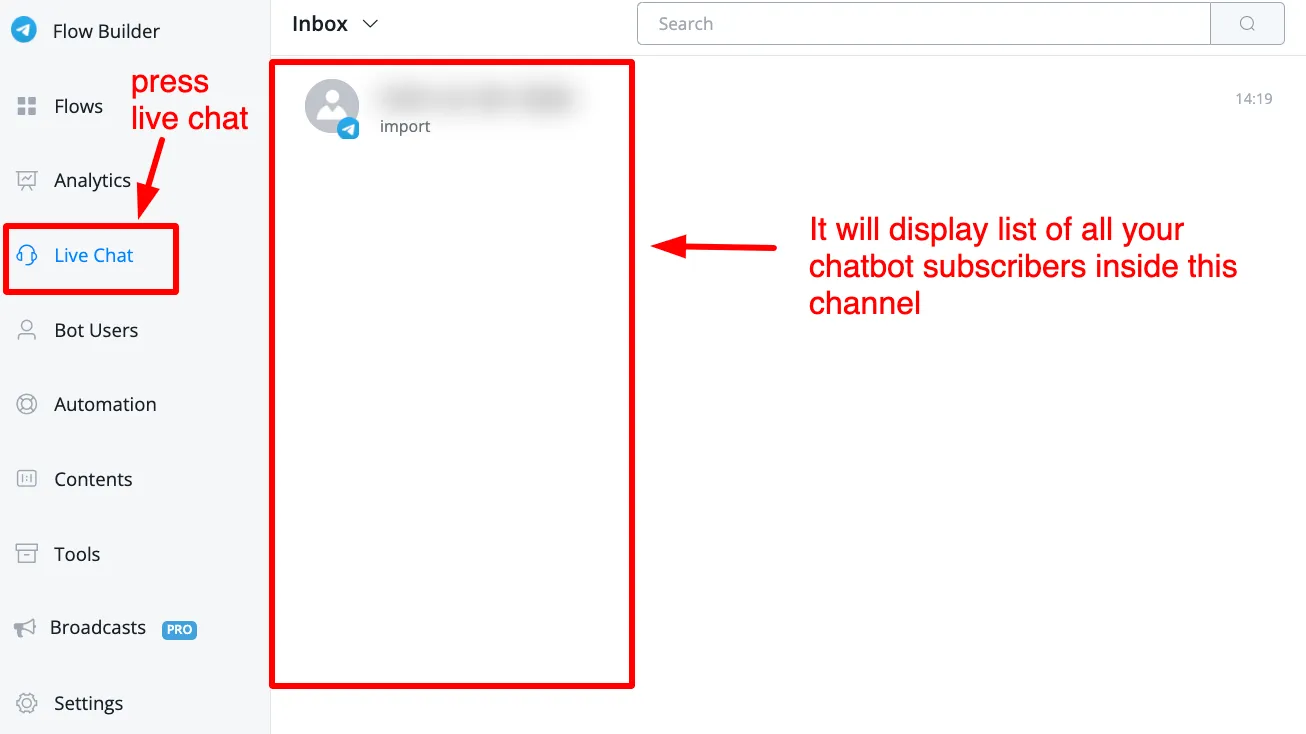
- From inside a bot: click Live Chat in the left-hand menu. You only see the users of that bot.
The Live Chat screen
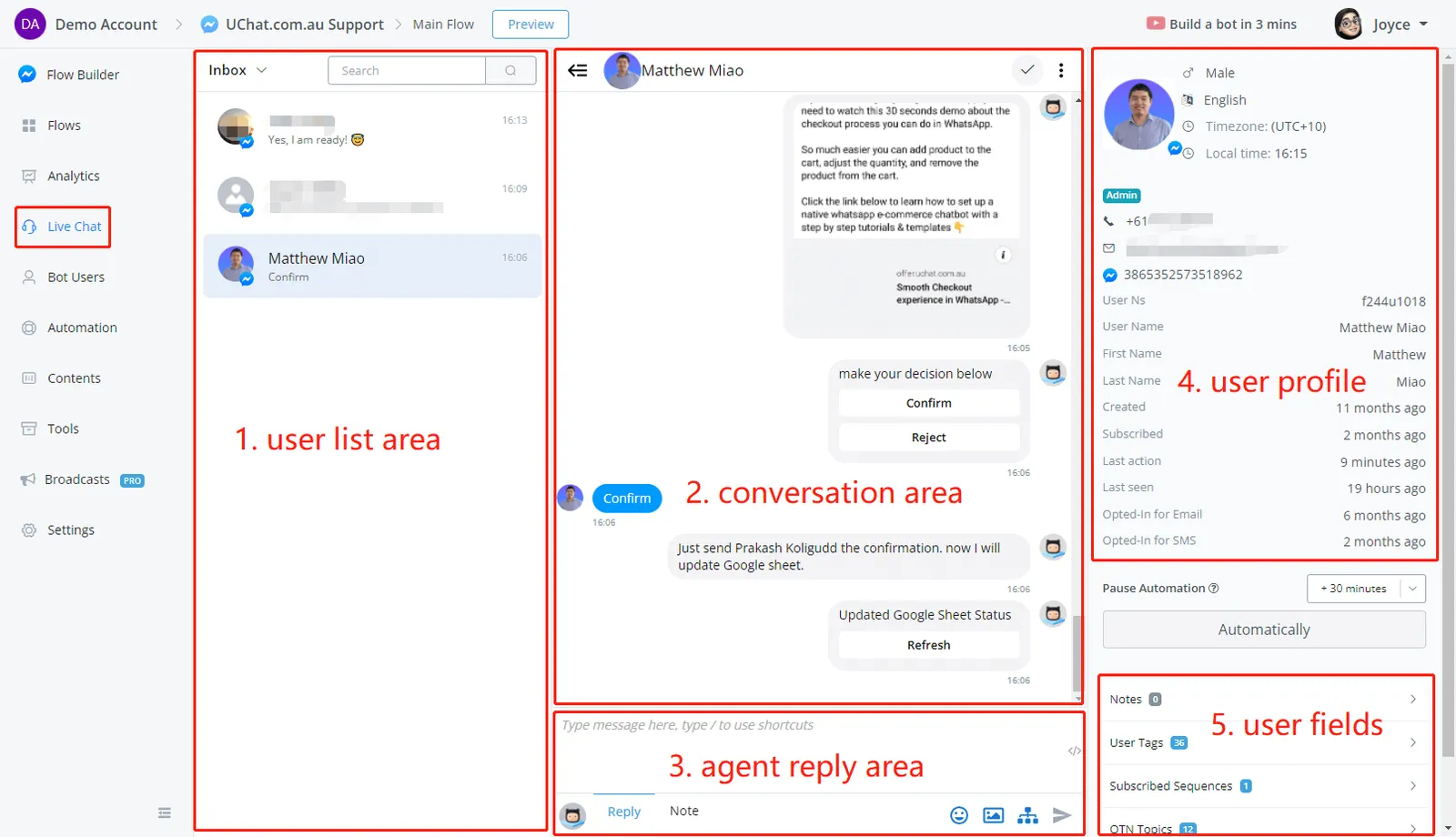
The screen has three main areas.
Conversation list
On the left you have the users who talked to your bot. Use the search bar to find a conversation by user name, and click a user to open the conversation and the profile. You can change the order of the list, see Organize conversations.
Conversation
In the middle you see the whole chat between the user and the bot.
- The
<=icon at the top hides the conversation list. - The tick icon in the upper-right corner moves the conversation to Done.
- The 3-dots icon has Hide message from bot, which leaves only the messages from the user and the agents, and Manage Shortcuts.
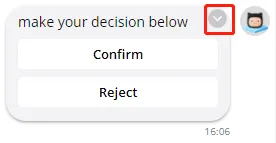
- Hover over a message sent by the bot and click the small
vicon to resend it or to jump to that step in the flow.
Reply box
At the bottom you write to the user.
- Type
/to search your shortcuts. Move through them with the up and down keys and press Enter to insert one. - Click the
</>icon to insert a field, like the user’s First Name. You can also type{{and search the field by name.
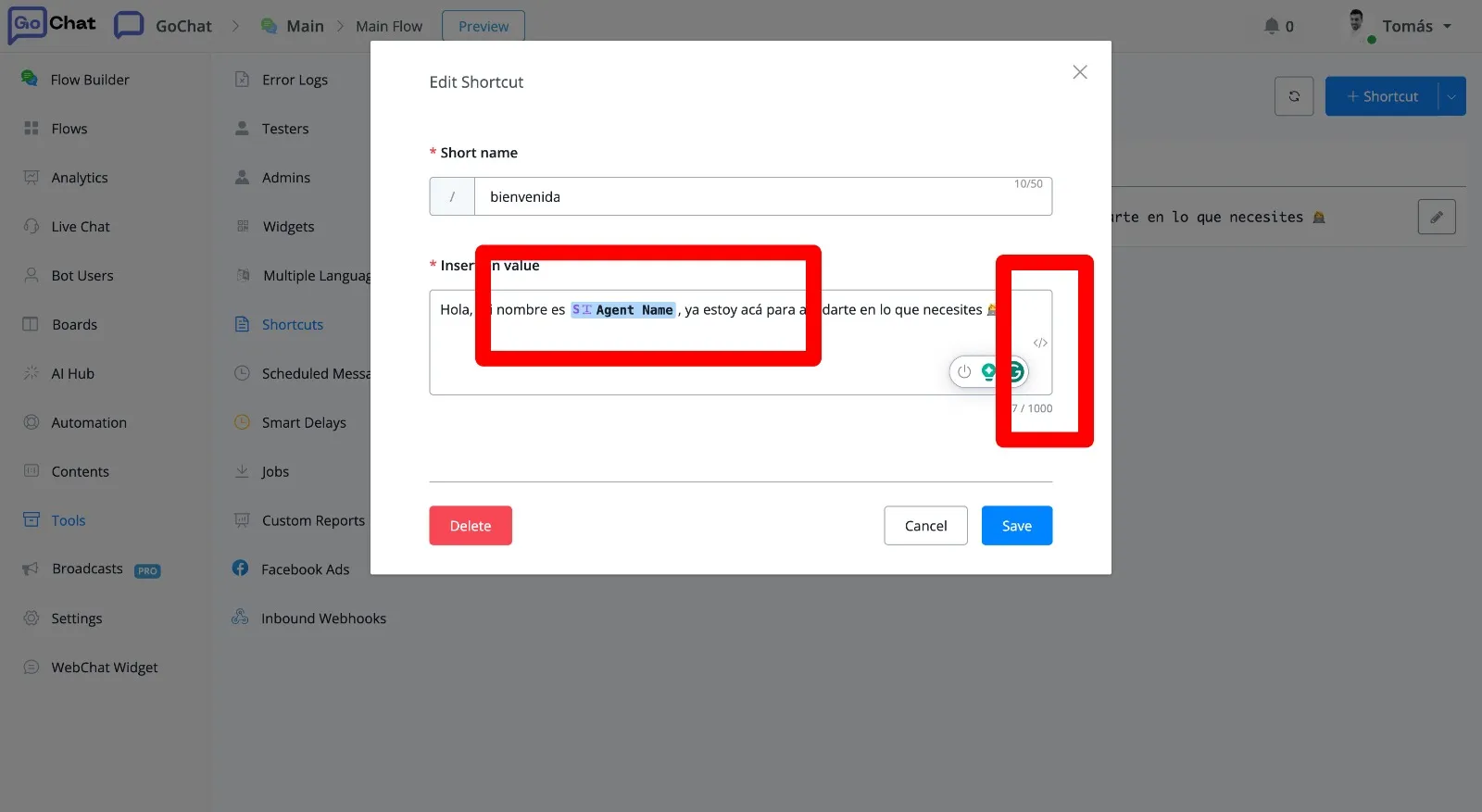
- The icon on the far left changes the persona that sends the message. The default one is the bot itself. You create personas in Contents → Personas.
- Switch between Reply and Note. In Reply the box is white and the message goes to the user. In Note the box is yellow and the text stays in the conversation as an internal note that the user never sees.
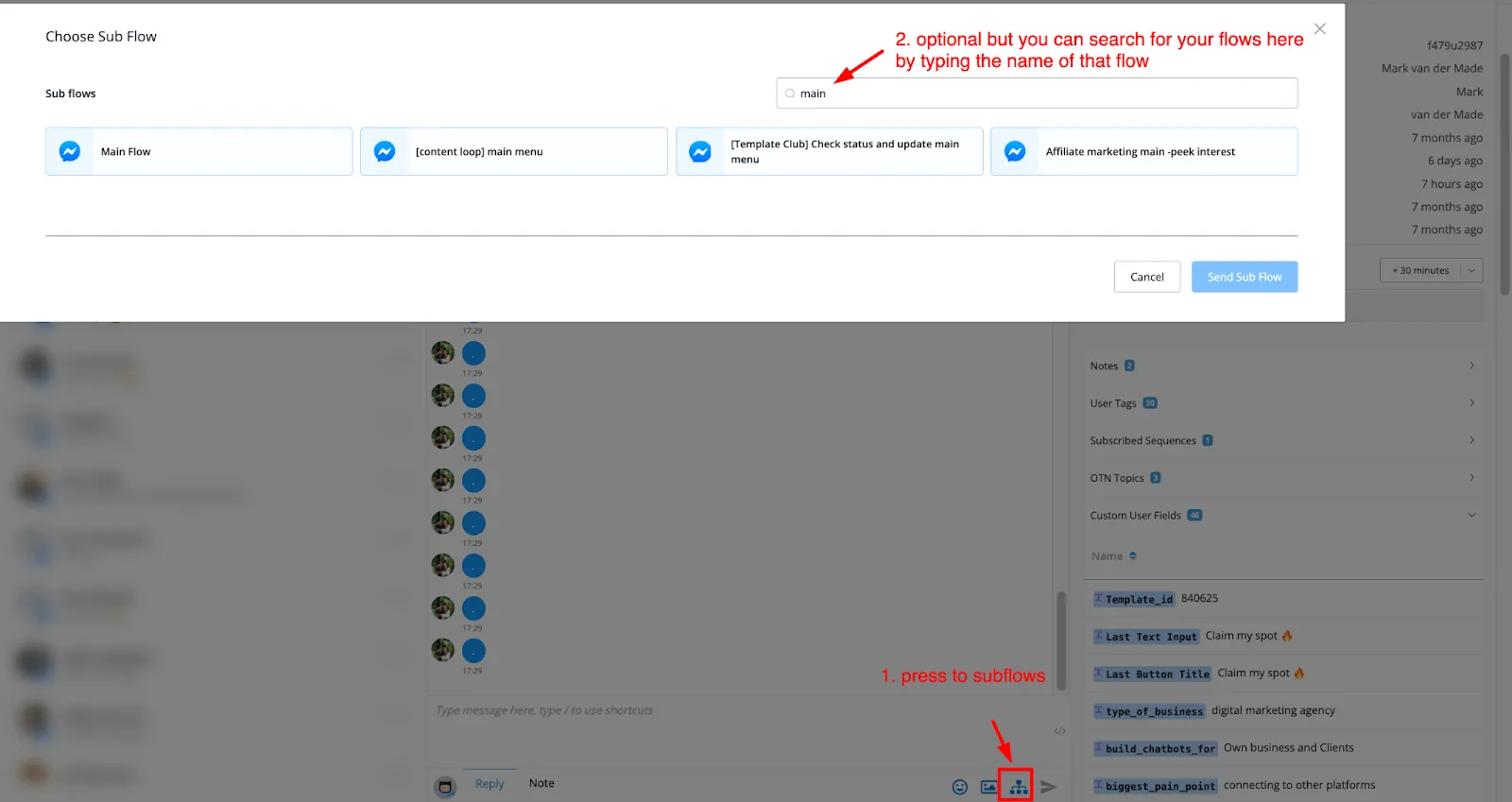
- The icons on the bottom right send emojis, media (image, gif, audio, video and file) and sub-flows. The last one sends the message. Enter does the same.
On the right side of the screen you have the user profile. See User profile and merging users.
The bot pauses while an agent replies
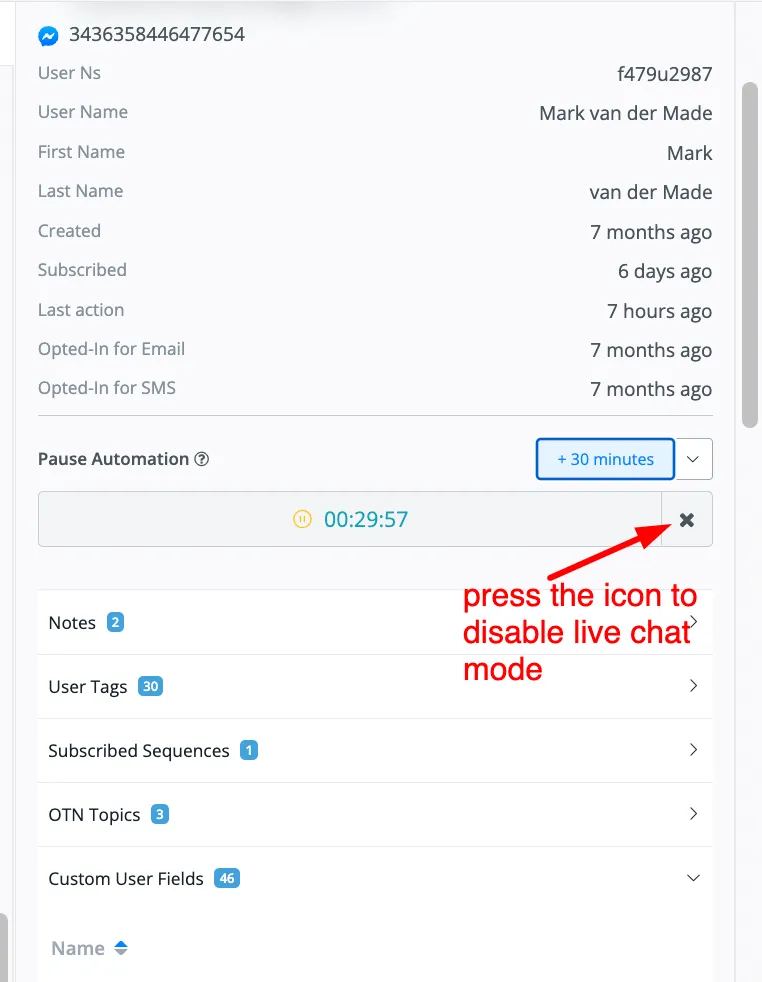
When an agent replies, the Pause Automation area starts a 30-minute countdown. During that time the bot does not answer the user. Agents can add more time if they need it. When the time is up, the bot answers again.
Send a sub-flow to the user
When you finish talking with a user you can hand them back to the bot with a sub-flow. Click the sub-flow icon in the reply box, search for the flow and click Send Sub Flow.
In this section
- Assign conversations to agents
- Organize conversations
- Messages, files and scheduling
- WhatsApp messaging window
- User profile and merging users